

What a run contains
- Run: the top-level execution record
- Actions: per-target executions created under that run
- Execution details: action status, step progress, failures, and, when available, the full agent session for an action
Start an Automation
Disabled Automations cannot be started. The Run button is hidden and triggers are ignored while an Automation is disabled. Re-enable it first.
- Open the Automation (or use the three-dot menu from the list).
- Click Run to start immediately with the Automation’s configured targets when it has no parameters.
Run with parameters
When an Automation references parameters, Run with options lists every detected parameter. Enter a non-empty value for each one before clicking Run. Ona also validates required parameters on the server, so a manual run cannot start with unresolved templates through another client. A parameter namedticket_id, for example, replaces {{ .Parameters.ticket_id }} in templated commands, prompts, and pull request fields. An Automation can reference up to 10 parameters.
ticket_id and repository. Spaces alone do not count as a value.
To define parameters in the Automation editor, see Add parameters to manual runs.
Do not use parameters for sensitive values. Configure service account secrets instead.
Template processing has resource limits: each field accepts at most 1 MiB of template text and produces at most 1 MiB of output. Analysis and rendering allow up to 10,000 processing steps per field. Control blocks can nest up to 64 levels, and up to 64 templates can be active during rendering. The parameter map has a conservative 1 MiB size limit. Parameter data and intermediate strings count toward an 8 MiB cumulative byte budget per rendered field, using conservative estimates for formatting and escaping functions. Existing API field limits still apply.
Across all fields in one manual run, analysis and rendering each allow up to 100,000 processing steps. Rendering also has a 64 MiB cumulative byte budget for parameter data and intermediate strings, and an 8 MiB total output limit.
If a template exceeds these limits, simplify its loops, repeated template calls, or formatting expressions. Ordinary parameter interpolation, aliases, conditionals, and named templates are supported within these limits.
Run with parameters through the API
CallWorkflowService/StartWorkflow with a personal access token or service account token. Put each template parameter in the parameters object.
contextOverride:
- Every parameter referenced by a manual run must have a non-empty value. Spaces alone do not count.
- Parameter names must match
^[a-zA-Z_][a-zA-Z0-9_]*$. - A request can contain up to 10 parameters.
contextOverridesupports project, repository, and agent contexts. An event-derivedfromTriggercontext is not valid for a manual run.- The caller must have access to every target in
contextOverride.
ONA_API_URL to that management-plane origin and use a token created on the same domain.
Monitor progress
The run details page shows real-time execution status. Action statuses:- Pending: queued, waiting to start
- Running: currently executing
- Done: finished successfully
- Failed: finished with errors
- Stopped: canceled before completion
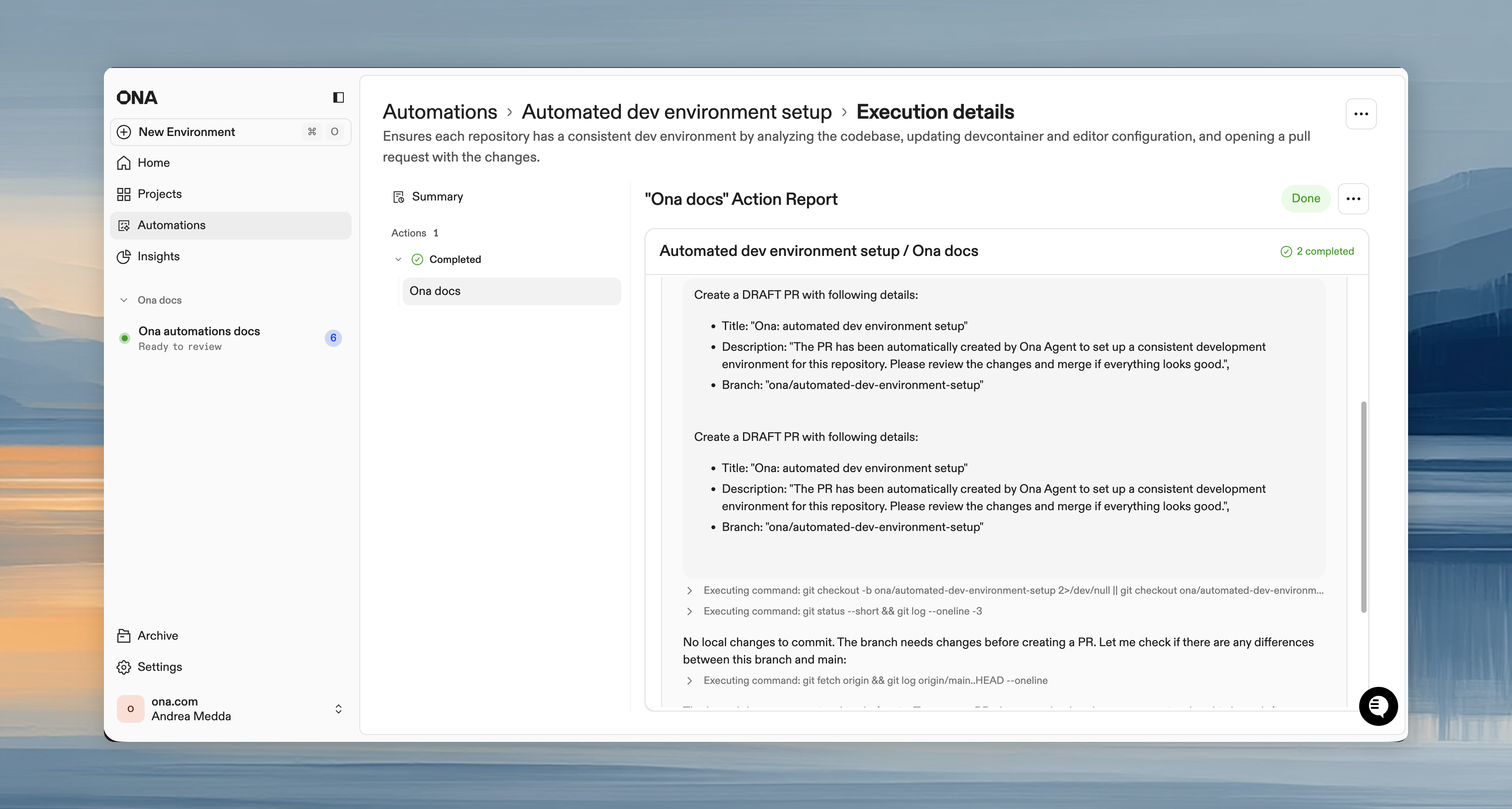
What to look for while monitoring
When a run is active, focus on:- whether actions are starting as expected
- which step a failed action stopped on
- whether failures are isolated to one target or systemic across many targets
Cancel execution
- Single action: three-dot menu > Cancel
- Entire run: click Cancel on the run details page
Review results
After completion:- View execution summary (completed/failed/canceled actions, time)
- Click individual actions to review execution details
- Check your SCM for pull requests created by the Automation
Execution history
View past runs from the Automation’s Execution History section. Each run retains action status and execution details for later inspection. For Enterprise organizations, agent details are available to anyone who can view the run. Codex runs show the effective model and reasoning effort; legacy Ona Agent runs show Ona Agent.- Organization admins and Automation admins also see intelligence usage for each run.
- Billing Viewers see intelligence usage only for automation runs they already have permission to view.
- Other scoped organization roles do not see intelligence usage unless another assigned role grants one of these permissions.
Common follow-ups
After reviewing a run, the next step is usually one of:- update the Automation configuration and run it again
- fix repository setup or secrets for the failing target
- tighten guardrails or switch to a service account
- move from manual testing to a time-based or pull request trigger