

New customer signup is closed. Existing customers and new members joining existing organizations can continue using Ona. Thank you for your interest; get started with Codex.
Prerequisites
- An Ona account
- Select your Git provider
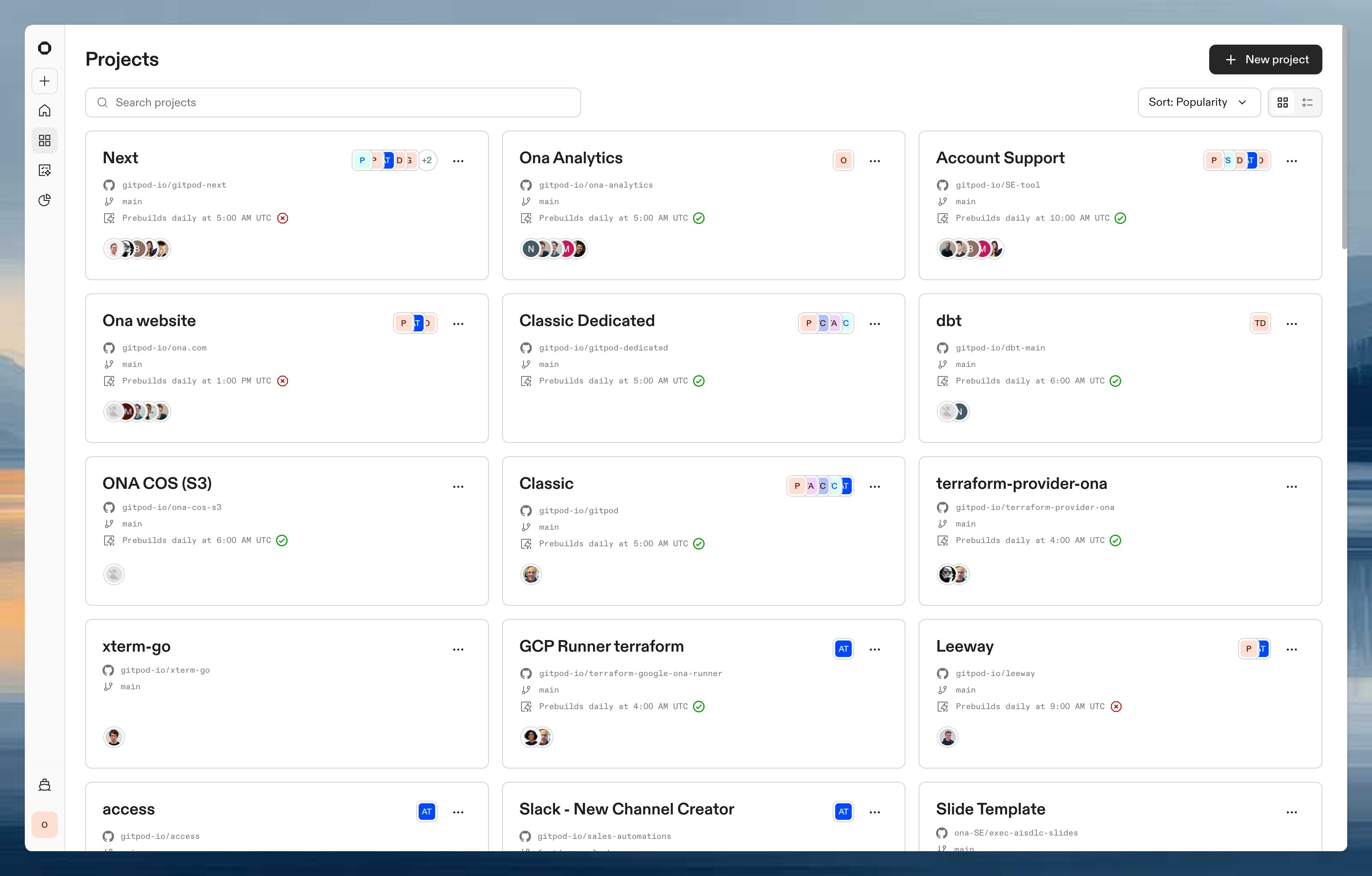
1. Create a project
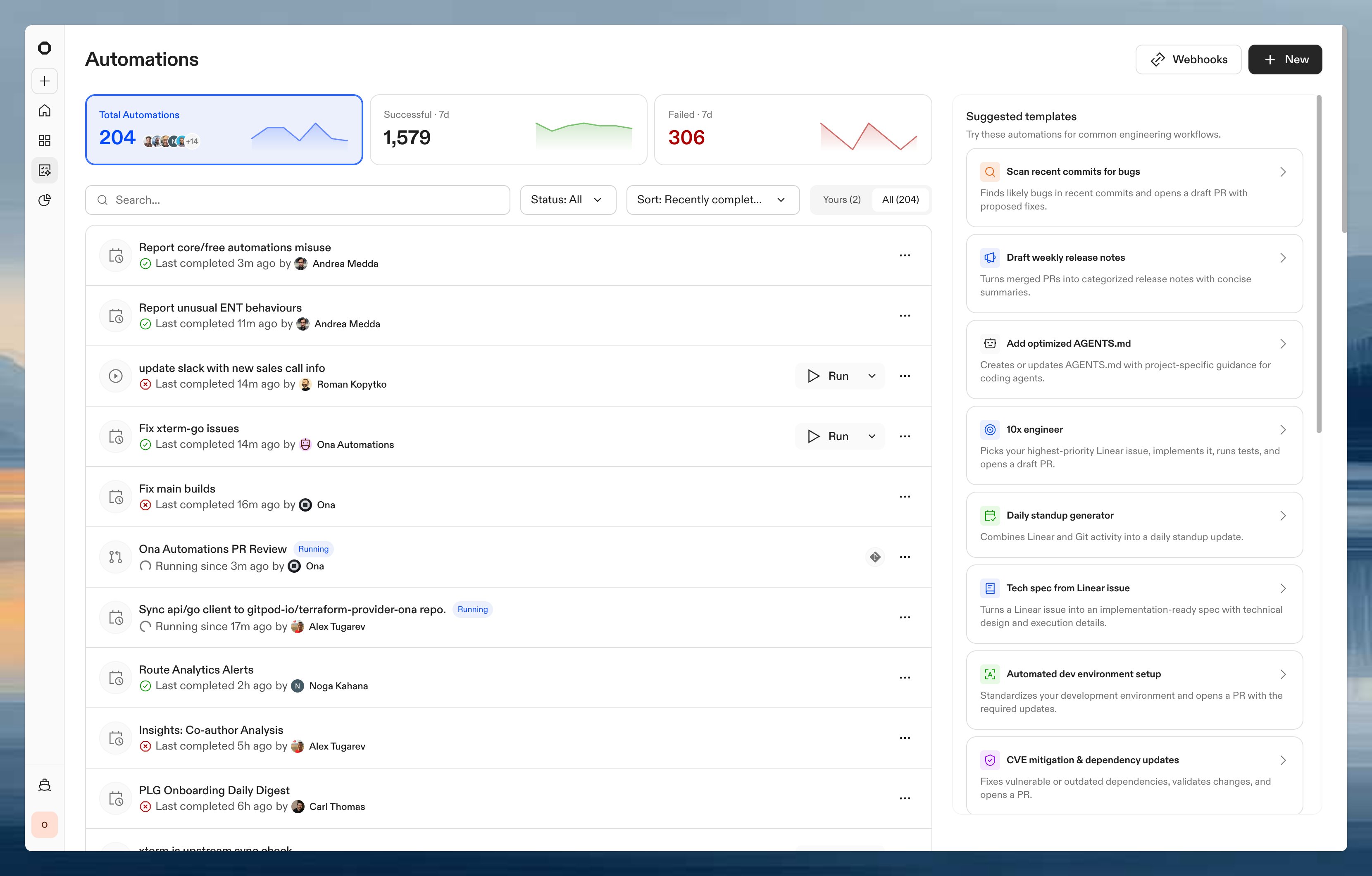
2. Start an environment
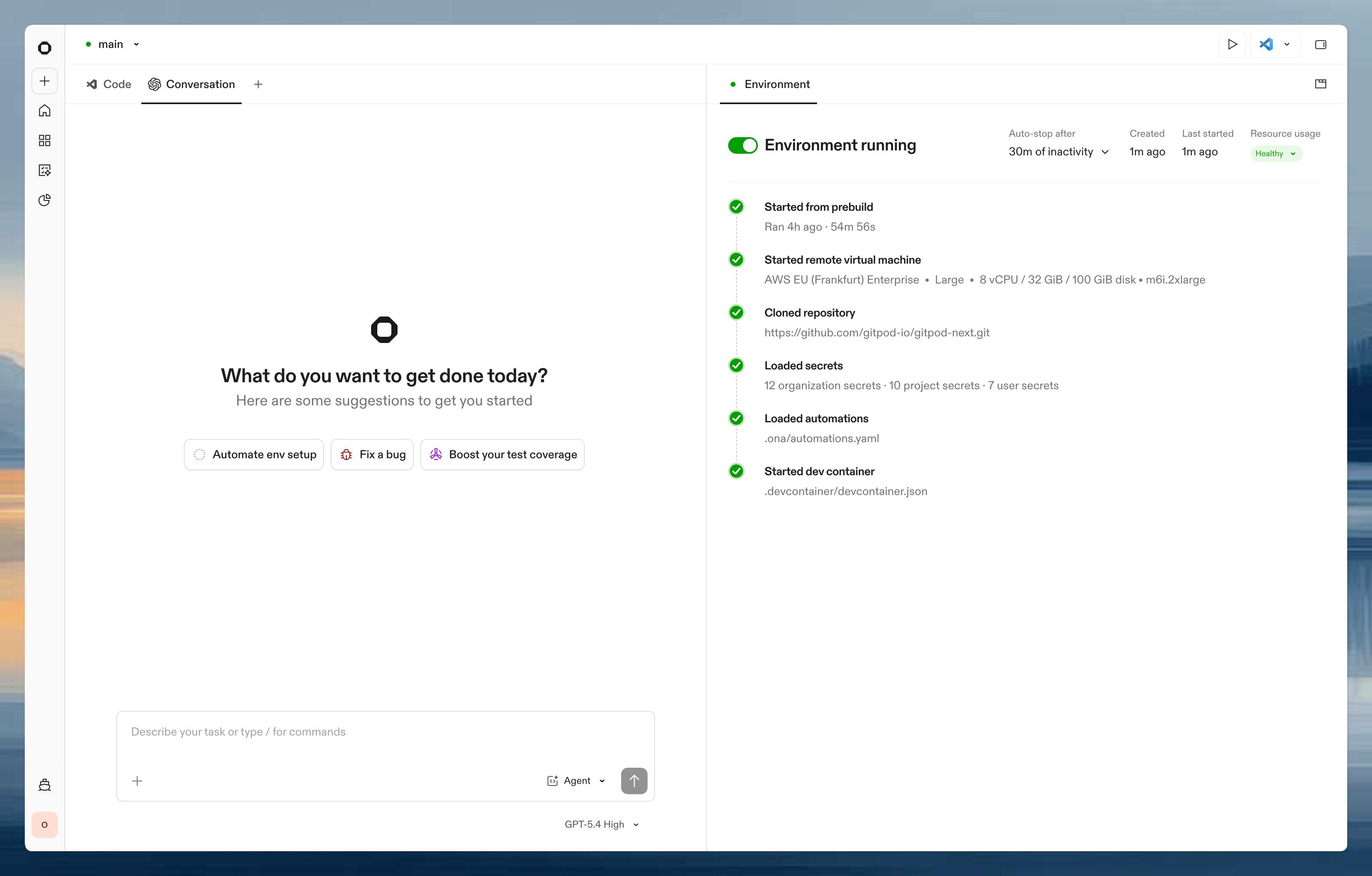
3. Talk to Ona
Once your environment is running, you have a session with Ona. Describe what you want to build, fix, or explore: Paste one of these prompts into Ona:Explore a codebase
”Explain the architecture of this codebase”
Paste into Ona
Fix failing tests
”Fix the failing tests in the auth module”
Paste into Ona
Add a feature
”Add a new API endpoint for user preferences, following the patterns in the existing code”
Paste into Ona
Review pull requests
”Review the open pull requests and leave detailed code review comments”
Paste into Ona
Pick up a Linear ticket
”Pick up the next ticket assigned to me in Linear and start working on it”
Paste into Ona
Implement a Jira ticket
”Look at PROJ-142 in Jira and implement what’s described”
Paste into Ona
4. Optimize your environment
Ona works out of the box with a default image, but you’ll get better results with a configured environment. You can set this up manually or let Ona do it. It will analyze your repository and generate adevcontainer.json and .ona/config.yaml tailored to your codebase.
Open Ona, then paste the prompt below if you want Ona to generate a starter configuration for the current environment.
Open Ona →
View the full prompt
View the full prompt
5. Run agents in the background
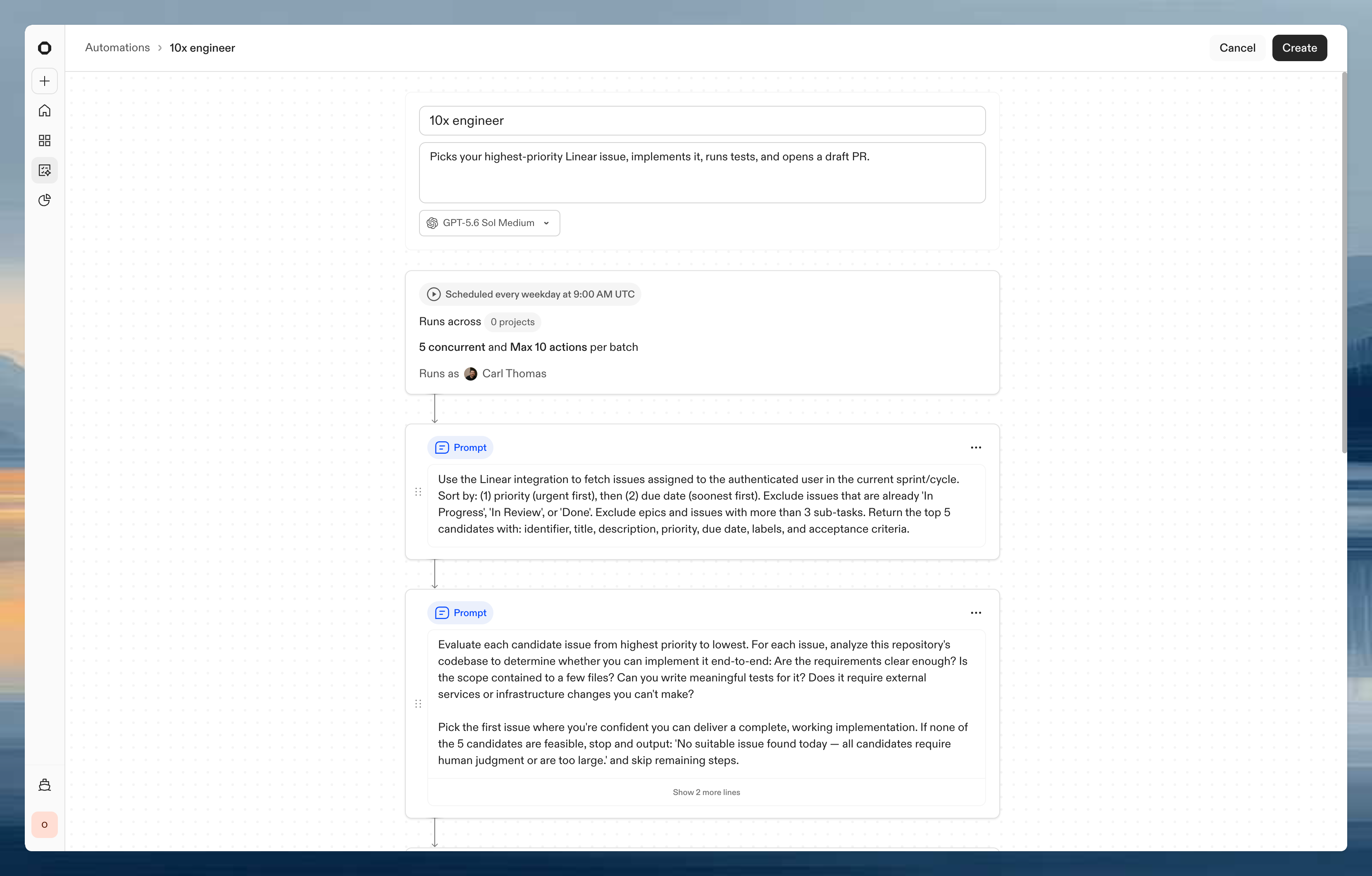
10x engineer
Daily, picks your top Linear issue, implements it, runs tests, and opens a draft PR.
Use template →
Scan recent commits for bugs
Scans recent commits for likely bugs and proposes minimal fixes in a draft PR.
Use template →
Sentry error triage and fix
Finds the top unresolved Sentry error, traces it to source, applies a fix, and opens a PR.
Use template →
Draft weekly release notes
Drafts release notes from the week’s merged PRs, grouped by category with summaries.
Use template →
CVE mitigation and dependency updates
Scans for CVEs or outdated dependencies, updates them, runs tests, and opens a PR with the fix.
Use template →
Daily standup generator
Pulls Linear sprint data and git activity to post a formatted daily standup update.
Use template →
Tips
- Be specific. Describe the exact symptom and location rather than saying “fix the bug.” See be explicit.
- Plan first. For complex tasks, ask Ona to plan before implementing. See plan before building.
- Commit often. Ask Ona to commit working changes as checkpoints. See commit early, commit often.
Next steps
- Best practices for writing effective prompts and working with agents
- Configure your environment with Dev Containers, tasks, and services
- Connect integrations like Linear, Jira, Slack, and Sentry
- Set up automations to run agents on schedules and triggers
- Teach agents your codebase with AGENTS.md