

Available on the Enterprise plan. Contact sales to learn more.
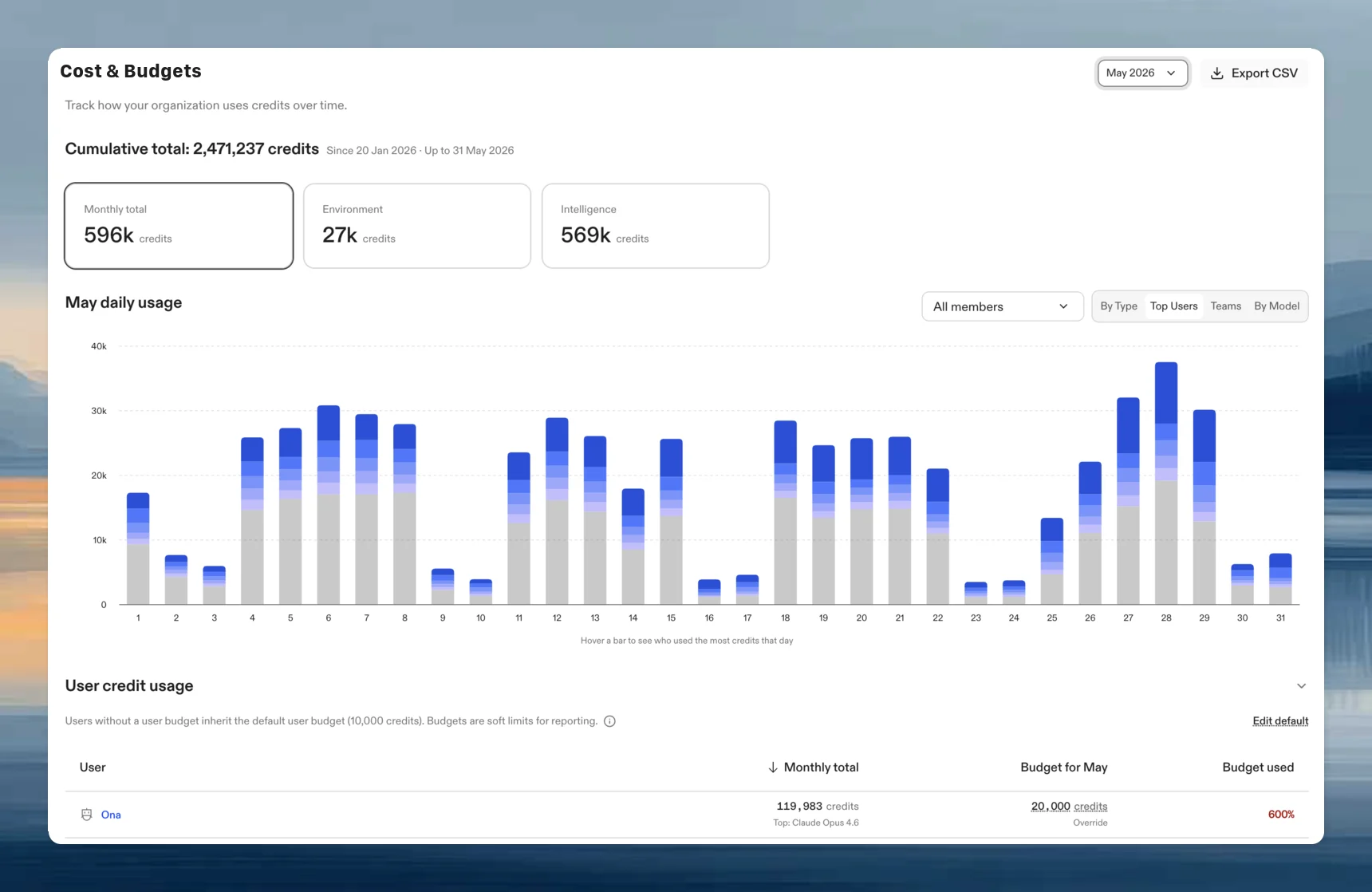
Budget types
Organizations with credit billing manage credit budgets in the User credit usage section of the Cost & Budgets page. Organizations that bring their own keys manage cost budgets in the User AI usage section.
Budgets reset at the start of each calendar month. Changing a budget applies going forward and does not change historical usage or budget history.
Access requirements
Organization admins can set, change, and remove budgets. Members with the Billing Viewer role can see usage and budgets but cannot change them.Set a default budget for all users
The default budget applies to every user who does not have an individual override.- Go to Settings → Cost & Budgets
- Open the user usage section
- In the default budget row, click Set budget
- Enter the monthly amount and save
Set a budget for one user
An individual budget overrides the organization default for that user.- Go to Settings → Cost & Budgets
- Open the user usage section
- In the user’s row, click the budget value, or Set budget if none is set
- Enter the monthly amount and save
Track utilization
Each row on the Cost & Budgets page shows the user’s month-to-date spend, their effective budget, and the percentage used. Users over 100% are highlighted. You can sort the table by budget or budget used to find the heaviest consumers. Users see their own budget utilization in the chat input while working with the agent, as a percentage of their monthly budget. CSV exports of credit usage include each user’s budget, so you can report on utilization outside Ona. Click Export CSV on the Cost & Budgets page.API access
Query usage, per-team and per-user attribution, and budget utilization programmatically. Use the Ona Intelligence usage API if your organization is billed in credits, or the AI cost usage API if you bring your own provider keys (BYOK). Each page opens with a short guide to tell which applies to you.FAQ
What happens when a user exceeds their budget?
What happens when a user exceeds their budget?
Nothing is blocked. Budgets are soft limits: the user’s row is highlighted as over budget on the Cost & Budgets page and their own indicator shows usage above 100%, but they can continue to create environments and use AI features. Use the Cost & Budgets page to follow up with heavy consumers.
Do unused budget amounts roll over to the next month?
Do unused budget amounts roll over to the next month?
No. Budgets are a fixed monthly allowance. Utilization starts at zero at the beginning of each calendar month.
Can service accounts have budgets?
Can service accounts have budgets?
Yes. Service accounts appear in the user usage table alongside members, and you can set a budget on a service account’s row the same way.
How do user budgets relate to team budgets?
How do user budgets relate to team budgets?
They are independent views of the same usage. Team budgets aggregate usage per team, while user budgets track each individual. Both are soft limits.