

Available on the Enterprise plan. Contact sales to learn more.
Available roles
How it works
When you assign an organization role to a group:- All group members receive the role’s capabilities
- Resource-scoped roles apply to existing and future resources where relevant
- Removing the role revokes the related access
Assign an organization role
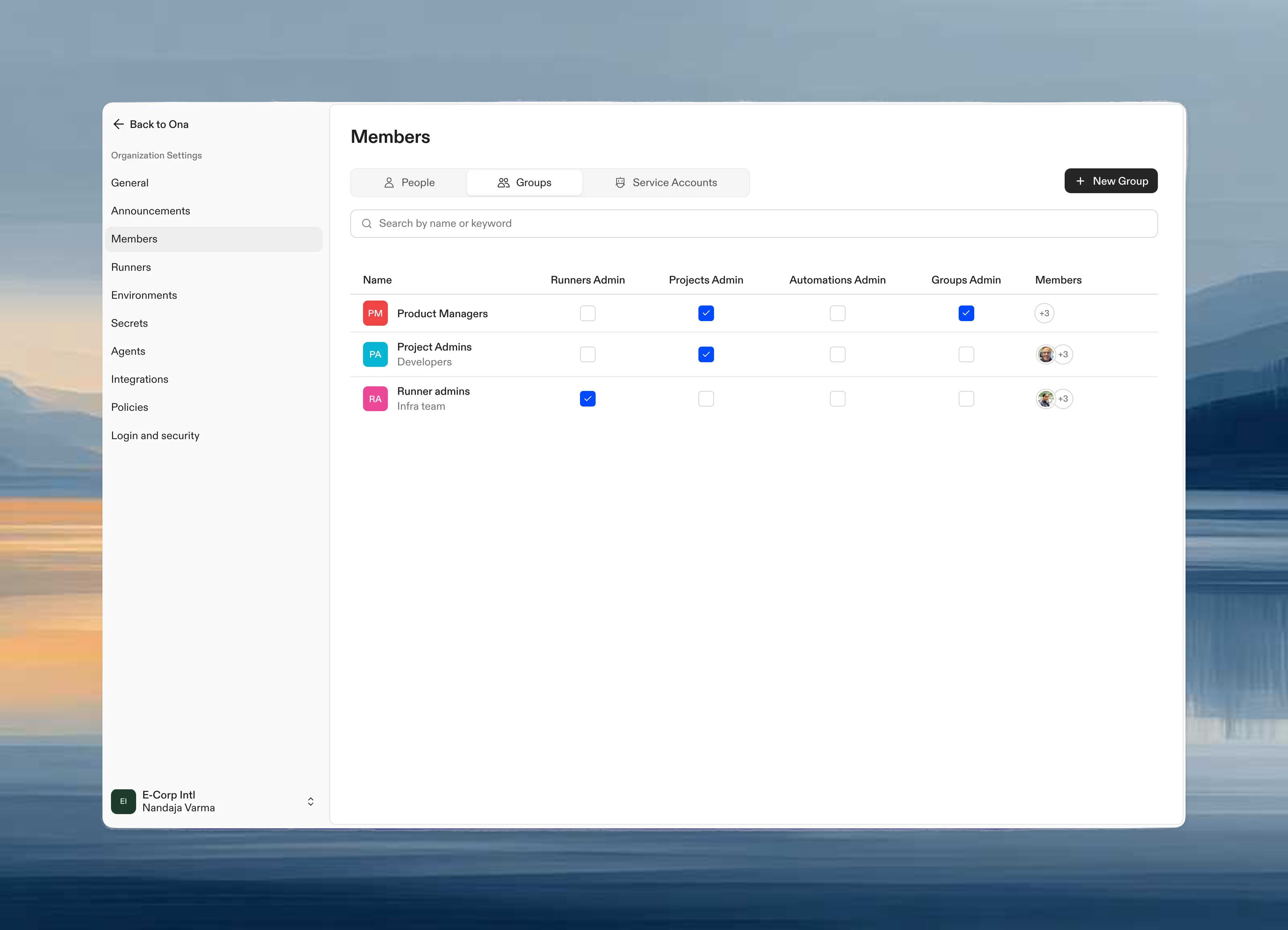
Only organization admins can assign organization roles.- Go to Settings → Members → Groups
- In the groups table, find the group you want to modify
- Toggle the checkbox in the corresponding role column, such as Runners Admin, Insights Viewer, or Billing Viewer
Permissions by role
Runners Admin
Members of groups with this role can:Projects Admin
Members of groups with this role can:Groups Admin
Members of groups with this role can:Automations Admin
Members of groups with this role can:This role does not grant webhook management permissions. Creating and managing webhooks for automation triggers requires organization admin access.
Insights Viewer
Members of groups with this role can:Insights Viewers can only view data. Organization admins are required to enable project insights before Velocity and AI Adoption data appears.
Audit Log Reader
Members of groups with this role can:Billing Viewer
Members of groups with this role can:Billing Viewers can only view billing and usage information. Organization admins are required for billing changes, credit top-ups, and budget management.
Use cases
DevOps team manages infrastructure: Assign Runners Admin to a “DevOps” group so they can create and configure runners without full org admin access. Team leads manage their projects: Assign Projects Admin to a “Tech Leads” group so they can manage project settings and secrets across the organization. HR manages team membership: Assign Groups Admin to an “HR” group so they can add and remove members from groups as people join or leave. Platform team manages automations: Assign Automations Admin to a “Platform” group so they can create and maintain organization-wide automations. Security team reviews audit logs: Assign Audit Log Reader to security or compliance staff who need audit history without organization admin access. Finance team reviews billing and usage: Assign Billing Viewer to finance stakeholders who need read-only access to billing and usage data without payment or budget controls. Engineering leaders review delivery metrics: Assign Insights Viewer to stakeholders who need read-only access to organization insights without project or runner administration permissions.Combining roles
A group can have multiple organization roles. For example, a “Platform Engineering” group might have both Runners Admin and Automations Admin roles. When a user belongs to multiple groups with different roles, they receive the combined permissions from all their groups.Next steps
- Create groups to organize your team
- Share resources for fine-grained access control
- Manage members to invite teammates