

Available on the Enterprise plan. Contact sales to learn more.
How webhooks work
- You create a webhook in Ona, choosing a provider (GitHub, GitLab, or Bitbucket Cloud) and a scope (repository or organization). The scope can be configured later, but the webhook won’t process events until one is set.
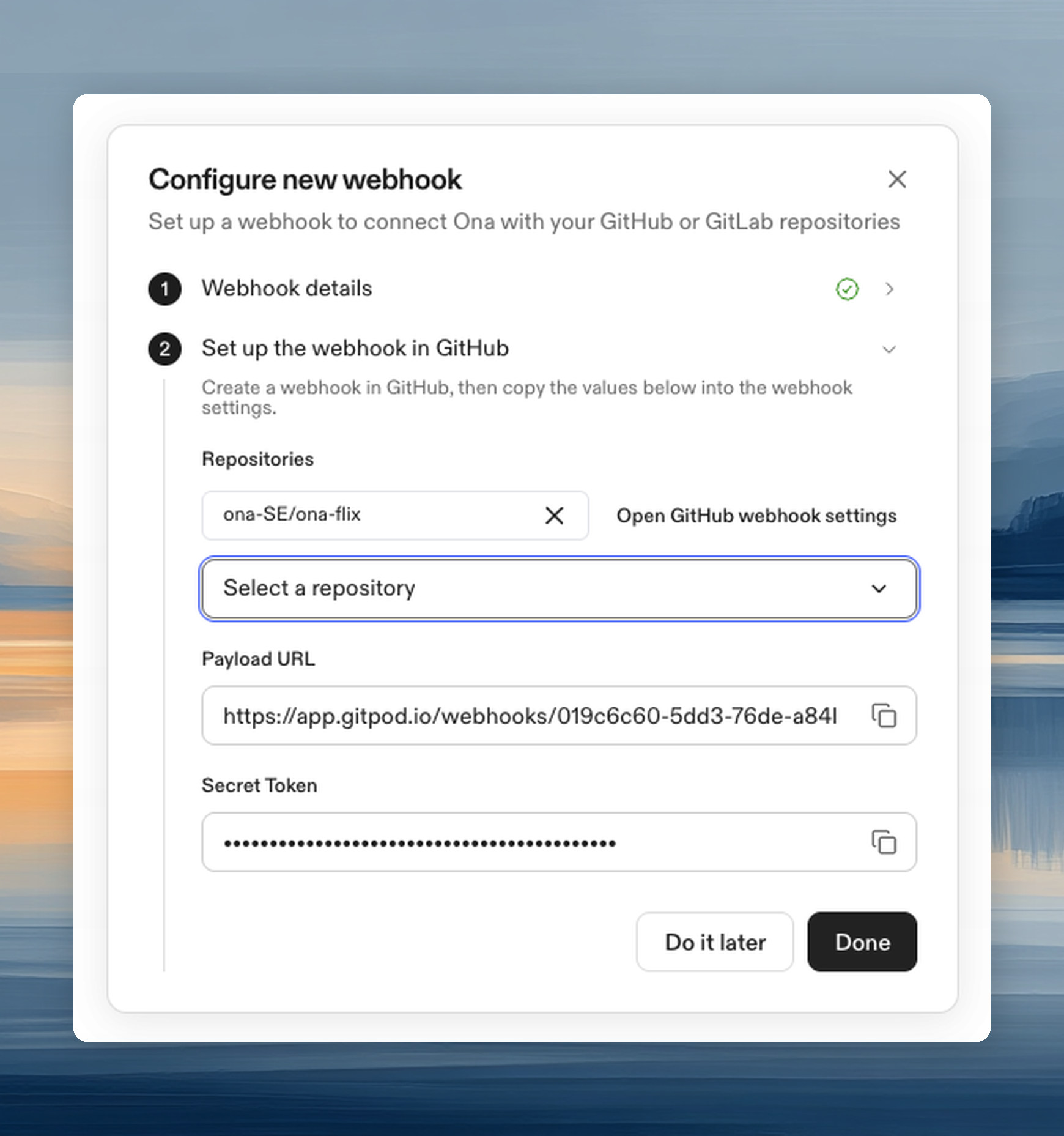
- Ona generates a payload URL and a secret token.
- You register the payload URL and secret in your Git provider’s webhook settings.
- When PR events occur, the Git provider sends a signed payload to Ona.
- Ona verifies the signature, matches the event to bound Automations, and triggers them.
Scope types
Repository-scoped webhooks support up to 100 repositories per webhook.
Required permissions
Only organization admins can create, update, and delete webhooks. The Automations Admin role does not currently grant webhook management permissions. Organization members can view webhooks but cannot modify them.Creating a webhook
Dashboard
- Go to Automations and click Webhooks in the top bar.
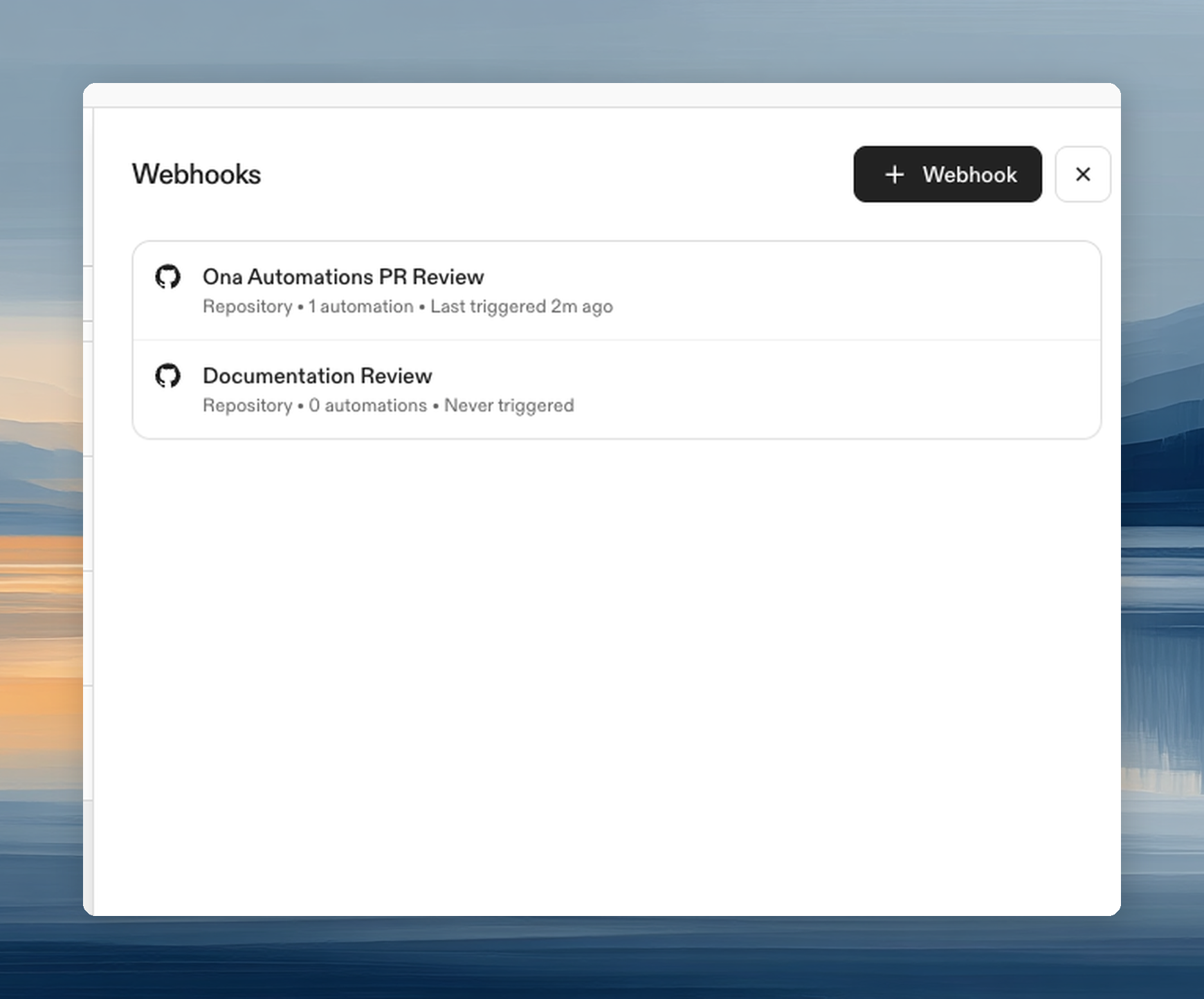
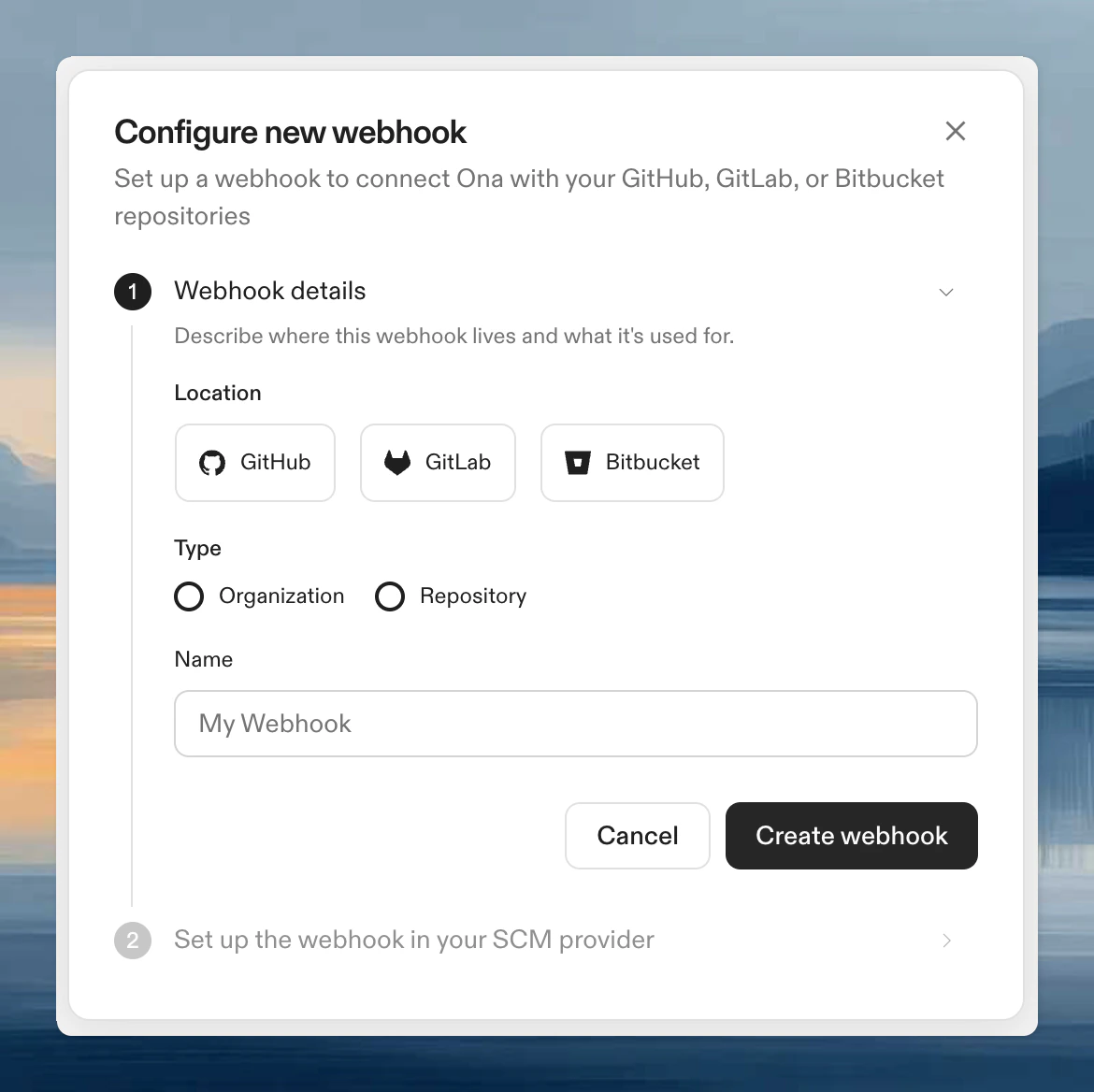
- Click + Webhook to open the creation dialog.
- Select the location (GitHub, GitLab, or Bitbucket Cloud).
- Choose the type (Organization or Repository).
- Enter a name for the webhook.
- Click Create Webhook.
CLI
Registering the webhook in your Git provider
After creating the webhook in Ona, register it in your Git provider so events are delivered.GitHub
- Repository webhook
- Organization webhook
- Go to
https://github.com/<owner>/<repo>/settings/hooksand click Add webhook. - Enter the Payload URL from Ona.
- Enter the Secret from Ona.
- Set Content type to
application/json. - Select Let me select individual events and check Pull requests.
- Click Add webhook.
GitLab
- Project webhook
- Group webhook
- Go to
https://gitlab.com/<owner>/<project>/-/hooksand click Add new webhook. - Enter the URL (payload URL from Ona).
- Enter the Secret token from Ona.
- Check Merge request events.
- Click Add webhook.
Bitbucket Cloud
- Repository webhook
- Workspace webhook
- Go to
https://bitbucket.org/<workspace>/<repo>/admin/webhooksand click Add webhook. - Enter the URL (payload URL from Ona).
- Enter the Secret from Ona.
- Under Triggers, select Choose from a full list of triggers and check Pull Request: Created, Updated, Approved, Merged, Declined.
- Click Save.
Managing webhooks
Viewing webhook details
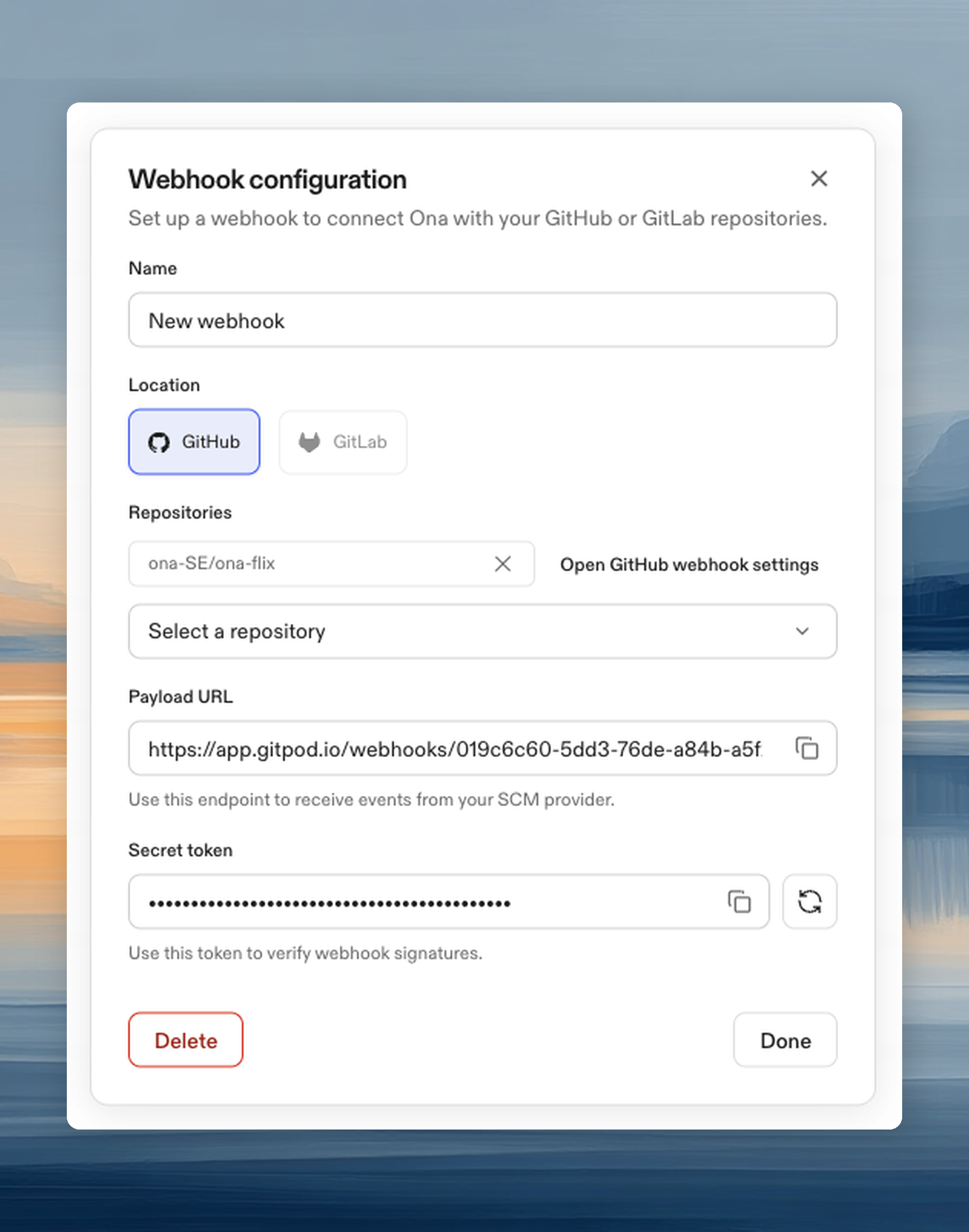
Click any webhook in the list to open its details panel. The panel shows:- Webhook name
- Payload URL and secret token (copyable)
- Provider and scope configuration
Updating scope
Change the repositories or organization a webhook is scoped to at any time from the details panel. The provider and type cannot be changed after creation. Create a new webhook instead.Rotating the secret
If a webhook secret is compromised, rotate it from the details panel. After rotation:- Copy the new secret from Ona.
- Update the secret in your Git provider’s webhook settings.
Deleting a webhook
When you delete a webhook:- Any Automations bound to it have their pull request triggers converted to manual triggers. They stop receiving PR events but can still be run manually.
- Running executions continue until they complete.
- The webhook is removed from Ona but not from your Git provider. Remove it from your provider’s settings separately to stop sending events.
Binding webhooks to Automations
When configuring a pull request trigger on an Automation, select a webhook from the dropdown or create a new one inline from the trigger configuration. Multiple Automations can share the same webhook. Each Automation independently defines which PR events it responds to (opened, updated, merged, etc.).Delivery limits
Webhook bodies can contain up to 25 MiB (26,214,400 bytes). This limit applies to the raw request body, including form encoding. Larger deliveries return HTTP413.
Ona allows 10 seconds to receive the request body and terminates deliveries that exceed this deadline. If webhook processing is at capacity, Ona returns HTTP 503 with a Retry-After header. Retry the delivery after the indicated delay. Request rate limits continue to return HTTP 429.
Security
Webhooks authenticate using HMAC signature verification. When your Git provider sends an event, it signs the payload using the shared secret. Ona verifies the signature before processing the event. Events with invalid signatures are rejected. Keep your webhook secret secure. If compromised, rotate it immediately.Next steps
- Pull request triggers: configure which PR events trigger your Automations
- Creating Automations: set up Automations that use webhooks
- Plans and limits: webhook availability by plan