

Available on the Enterprise plan. Contact sales to learn more.
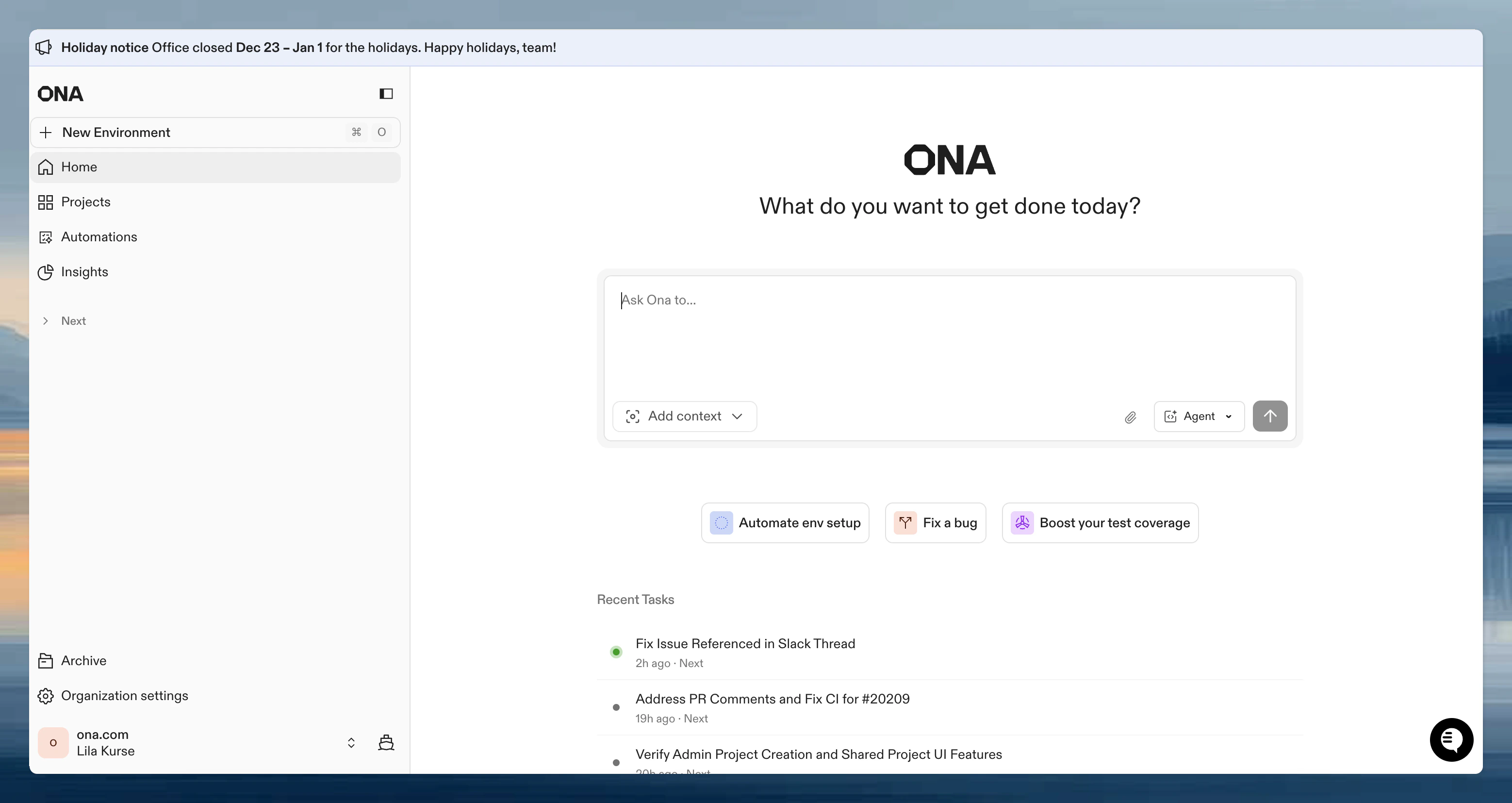
Configure the notice
- Go to Settings → Organization → Announcements
- Turn on Show announcement
- Enter your message (up to 1,000 characters)
- Click Save

Formatting
Home notices support basic Markdown for emphasis and links. A live preview shows exactly how your message will appear.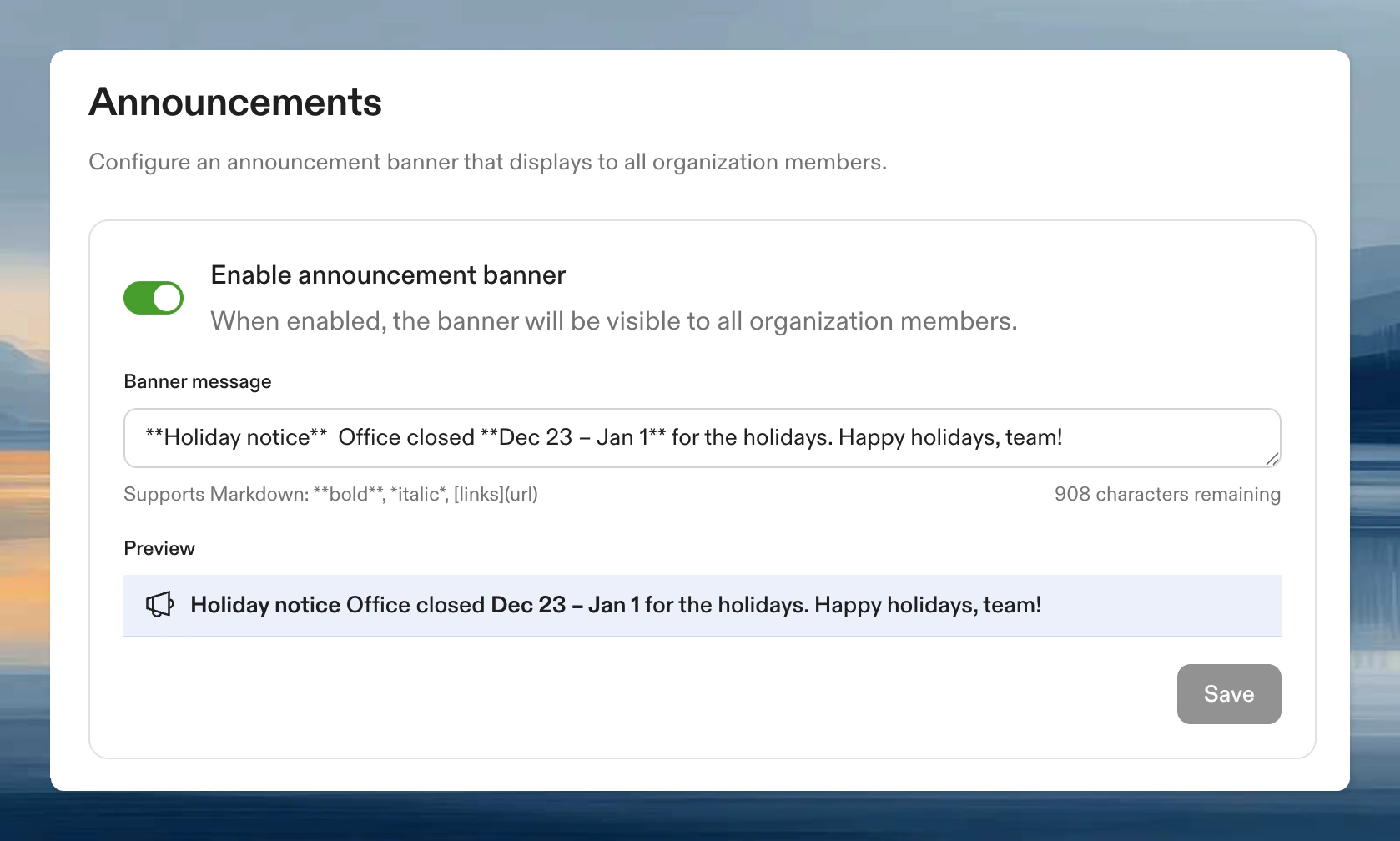
Use cases
- Scheduled maintenance windows
- New feature announcements
- Policy changes or reminders
- Security notices
- Team-wide updates
Disable the notice
Toggle off Show announcement in the settings. Your message is preserved and can be re-enabled later.FAQ
Who can see the notice?
Who can see the notice?
All organization members see the notice when logged in. It appears on the Ona home page.
Can I preview before publishing?
Can I preview before publishing?
Yes. When you enter a message, a live preview appears below the text field showing exactly how it will look.
Who can configure notices?
Who can configure notices?
Only organization administrators can access the Announcements settings page.