

What agents can do with Linear
Once connected, agents can:- Create issues from context: Find a bug? The agent creates an issue with steps to reproduce, relevant code snippets, and suggested labels.
- Update as they work: Agents can move issues to “In Progress” when they start and “Done” when they finish.
- Search and reference: Ask about related issues, find duplicates, or get context from existing tickets.
- Add comments: Document findings, link PRs, or note blockers directly in Linear.
Start a session from an issue
Beyond the MCP tools above, you can start an agent session directly from a Linear issue in two ways:- Mention the agent in an issue comment to start a session on that issue.
- Delegate the issue to Ona by assigning it, and the agent picks it up.
Example workflows
Connect Linear
Step 1: Organization setup
An admin needs to enable Linear for your organization first.- Go to Organization Settings > Integrations
- Find Linear and click Enable
- Configure default workspace settings if needed
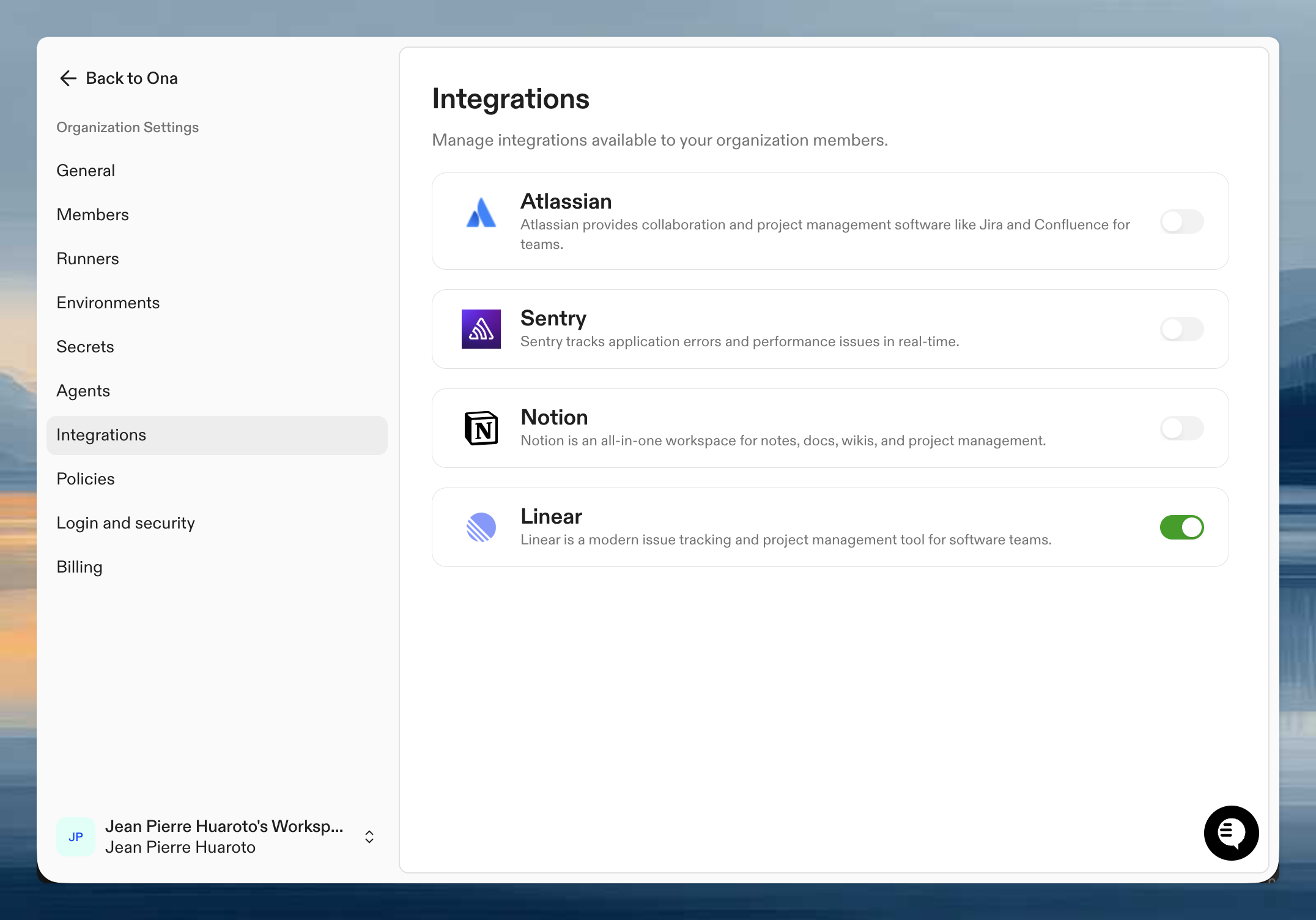
Step 2: Authenticate your account
Once enabled, connect your personal Linear account:- Go to User Settings > Integrations
- Click Connect next to Linear
- Authorize Ona to access your Linear workspace
- Select which workspaces to connect
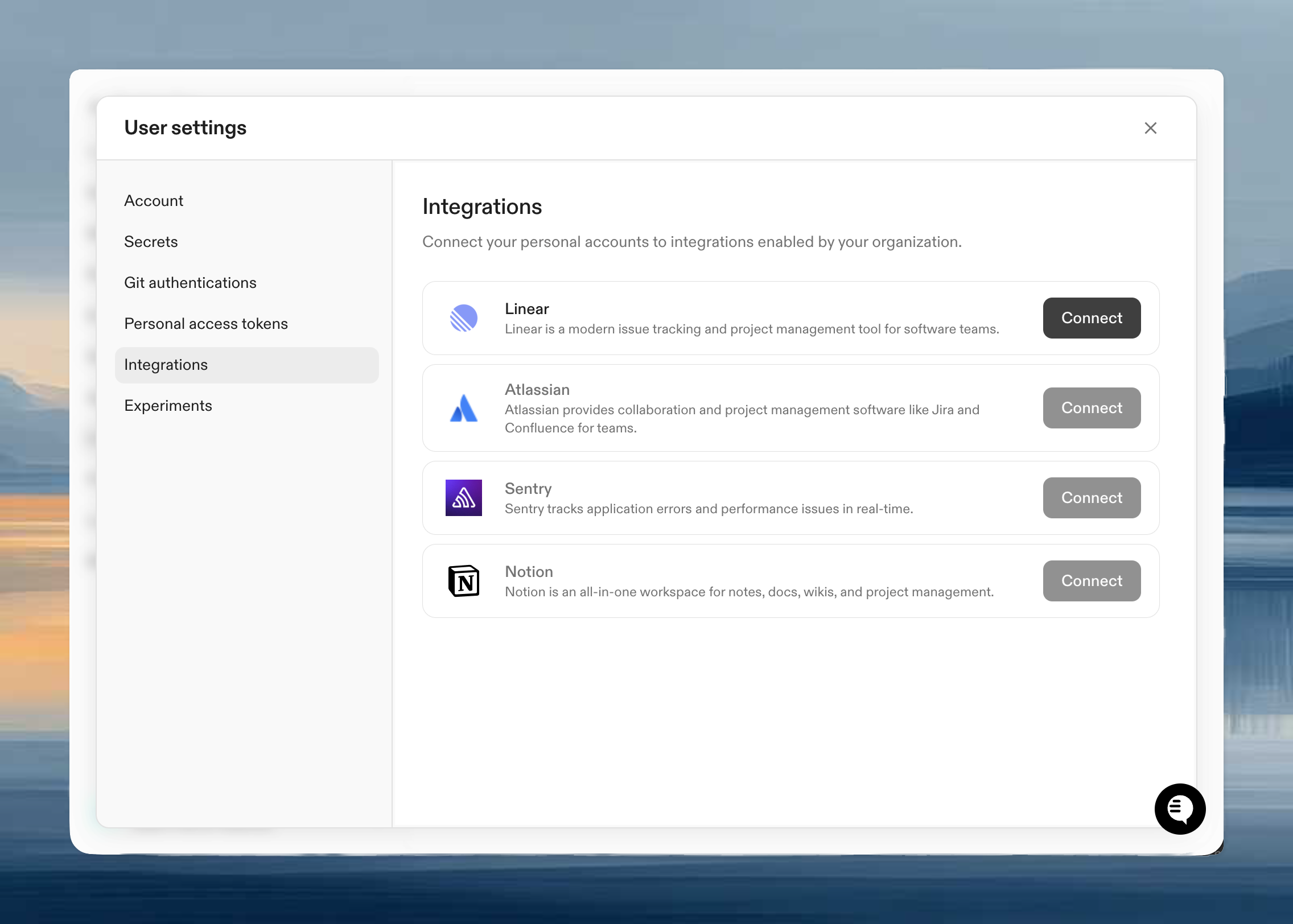
Verify it works
Start a session with an agent and try:Tips for effective use
Be specific about projects: If you have multiple Linear teams, specify which one: “Create an issue in the API team for this bug.” Include context: The more context you give, the better the issue: “Create an issue for this null pointer exception, include the stack trace and the user flow that triggers it.” Use with AGENTS.md: Add your Linear conventions to AGENTS.md so agents know your labeling system and workflow stages.Webhook delivery limits
Inbound Linear webhook bodies can contain up to 4 MiB (4,194,304 bytes). Larger deliveries return HTTP413. This limit applies to agent-session and issue webhooks.
Ona allows 10 seconds to receive the request body and terminates deliveries that exceed this deadline. Temporary capacity limits return HTTP 503 with a Retry-After header indicating when to retry.
Next steps
- Teach agents your codebase including your Linear conventions
- Organization-level skills for common Linear workflows like
/bug-report - Learn about integrations for other available connections
Troubleshooting
Agent features are not active
Agent features are not active
This warning means the app authorization for agent capabilities (like @mentions and webhooks) is missing or expired. Basic features like reading and creating issues via MCP tools still work with your personal token.Click Authorize app to start the authorization flow.