

- “This button is misaligned, fix it” (with a screenshot of the UI)
- “Implement this design” (with a mockup attached)
- “Why is this test failing?” (with a screenshot of the error output)
How to attach images
Click the attach button
Click the paperclip icon in the prompt input bar, then select one or more image files from your file system.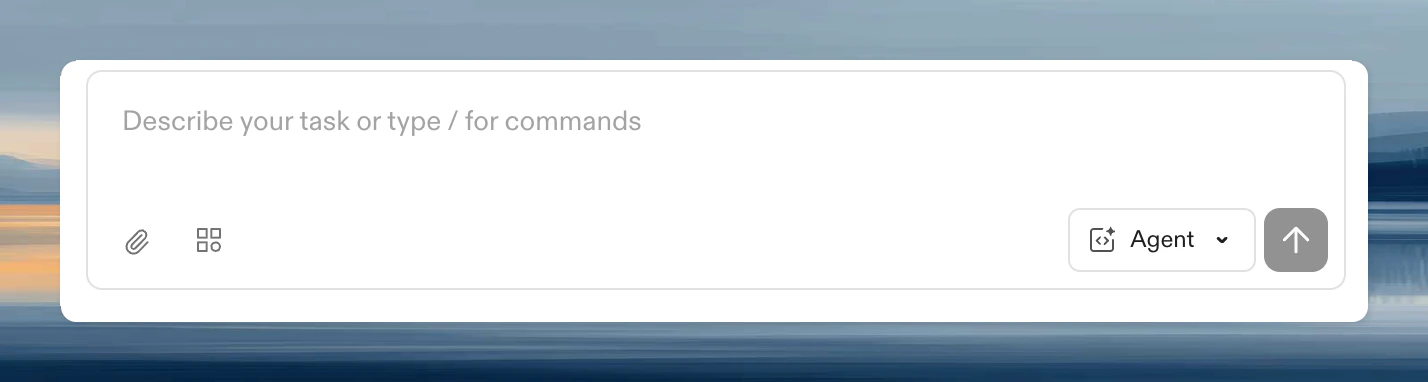
Drag and drop
Drag image files from your file system directly onto the prompt input area. A visual indicator appears when files are detected.Paste from clipboard
Copy an image or screenshot to your clipboard (e.g. with a screenshot tool), then paste it into the prompt input with Cmd+V (macOS) or Ctrl+V (Windows/Linux).Attached images in the prompt
After attaching, images appear as thumbnails above the prompt text. Click a thumbnail to preview it at full size. Click the X button on a thumbnail to remove it before sending.Limits
Files that exceed these limits are rejected.
When to use image attachments
- UI bugs: screenshot the broken UI and ask Ona to fix it
- Design references: attach a mockup and ask Ona to implement it
- Error messages: screenshot a stack trace or error dialog
- Terminal output: screenshot complex terminal output that is hard to copy as text
- Diagrams: share architecture diagrams or flowcharts for context
Viewing images in sessions
Attached images appear inline in the session history. Click any image to open it in a lightbox for full-size viewing.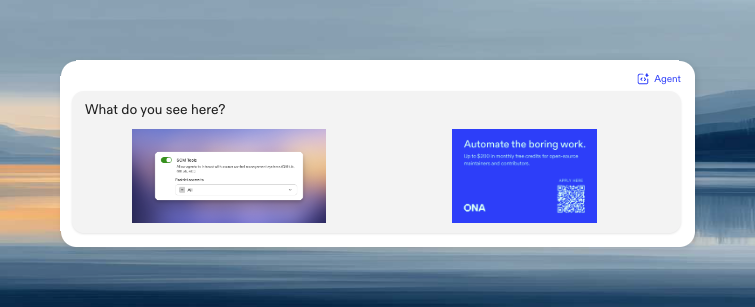
Troubleshooting
Image rejected
Image rejected
Only PNG and JPEG files are supported. Other formats (GIF, WebP, SVG) are not accepted. Check that the file is under 4 MB and its dimensions do not exceed 8192 x 8192 pixels.