Ona seamlessly integrates with VS Code, allowing you to connect to your environments. This guide will walk you through the setup process and provide tips for managing, troubleshooting, and recovering environments within VS Code.
VS Code desktop connected to an Ona environment showing project files and editor

Prerequisites

Before starting, ensure that you have the following:
  1. VS Code installed.
  2. The Ona extension for VS Code installed and enabled.
  3. The Remote - SSH extension installed and enabled in VS Code.
Keep your VS Code and extensions updated for the best experience.

Opening an Environment

VS Code

  1. Start an environment in Ona
  2. Open in VS Code
    • While the environment is starting, you can click the Open in VS Code button on the action bar. This button is available at any stage—even when the environment is not fully running yet.
      Environment action bar showing Open in VS Code button
    • Alternatively, use the VS Code icon from the sidebar to launch the environment.
      Environment sidebar showing VS Code icon to open
  3. VS Code should open or you should see a dialog asking you to open. See Prerequisites if you cannot open VS Code.
    System dialog asking to open VS Code application

VS Code Insiders

You can select VS Code Insiders from the editor selector dropdown by clicking on the dropdown arrow next to the editor button on the action bar.
Editor dropdown showing VS Code Insiders option

Install and sign in

1. Install the Ona extension

After opening, VS Code will prompt you to install the Ona extension if it’s not already installed.
  • Click Allow when prompted.
    VS Code notification prompting to install the Ona extension
The extension will make changes to your local SSH configuration to enable a smooth experience. This allows for seamless connectivity between VS Code and your environments.

2. Install Remote Development extensions

The integration requires both the Remote - SSH extension to function. If this is not already installed, VS Code will notify you to add it.
  • Click Install to add this dependency.
    VS Code notification prompting to install Remote - SSH extension

3. Authenticate with Ona

VS Code will then ask you to authenticate with your Ona account:
  1. Click Open when prompted to navigate to the Ona authentication page.
    VS Code dialog prompting to open Ona authentication page
  2. Follow the authentication process to complete the sign-in.
    Ona authentication page confirming successful sign-in
  3. After signing in, you will be redirected back to VS Code and the page can be closed.
If you encounter any issues during the sign-in process, it may be helpful to sign out and try again.

Workspace Trust

When connecting to a new environment, VS Code may prompt you to trust the workspace. This is a standard security measure for potentially untrusted code. For more information, refer to the VS Code documentation. Ona environments always run in isolated VMs, ensuring that code doesn’t access secrets outside the environment. The environment remains secure regardless of how you access it. If you’re familiar with the repository, you can safely click Trust Folder & Continue.
VS Code workspace trust dialog asking to trust the folder

Managing Your Environment

Once connected, you can manage your environment directly from VS Code:

Viewing Environment Details

  • Check the status, active branch, and logs using the Environment Details panel.
  • If you closed the panel, re-open it using the Ona: Show Environment Details command from the Command Palette.
VS Code environment details panel showing status, branch, and logs
Clicking on details while opening the environment will also open the Environment Details panel.
VS Code notification showing environment connection progress with details link

Accessing Commands

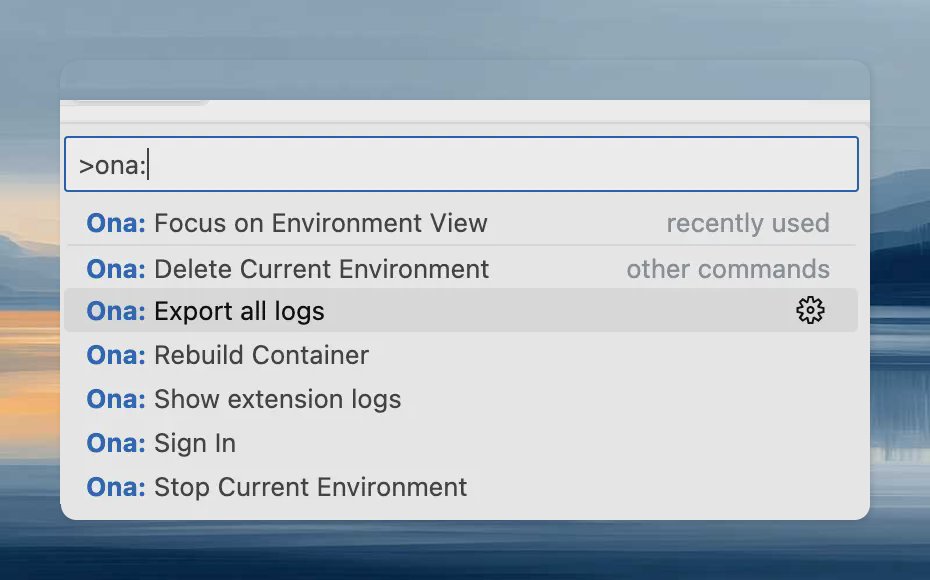
  • Open the Command Palette (Cmd+Shift+P or Ctrl+Shift+P) and type Ona to view commands such as:
    VS Code command palette showing available Ona commands
  • Clicking on the remote indicator in the bottom-left corner of the remote window also shows a quick menu of Ona commands.
    VS Code remote indicator in bottom-left showing connection to Ona

Rebuild

Rebuilding is necessary to apply changes made to .devcontainer.json, Dockerfile, or docker-compose.yml files to the container. This process ensures that your development environment reflects the latest configuration updates. To rebuild the container, you have two options:
  1. Command Palette: Use Ona: Rebuild Container
  2. Rebuild Prompt: VS Code detects changes and prompts
    VS Code notification prompting to rebuild the Dev Container after configuration changes
While the container is rebuilding, you will be disconnected and automatically reconnected when it’s finished. You can inspect the details view to learn about the progress and inspect logs.
VS Code output panel showing Dev Container rebuild progress and logs

Troubleshooting

Limitations

Currently there are a couple limitations related to the Dev Container specification:
  • Port forwarding does not work for hosts other than localhost. For instance, forwarding ports from other services specified in a docker-compose.yml .
    • Workaround: Use network_mode: host in your docker-compose.yml for the services you want to port forward.
  • remoteEnv environment variables values are not applied unless the Dev Container is rebuilt.

Build Issues

If the initial build or a rebuild fails, you will enter recovery mode. When a build failure occurs:
  1. A modal will appear notifying you of the failure.
    VS Code modal notifying of Dev Container build failure
  2. Pay close attention to the error messages in the details view.
    Environment details view showing build failure error messages
  3. Inspect the logs as necessary to understand the root cause of the failure.
    VS Code output showing detailed build failure logs
  4. Make the required changes to the .devcontainer.json file to address the issue.
  5. Trigger a rebuild using the Ona: Rebuild Container command.
The recovery mode is not stable for development. Always aim to fix the configuration and successfully rebuild the container.

Authentication Issues

If you’re experiencing authentication issues or need to switch accounts:
  1. Use the Ona: Sign Out command to sign out.
  2. Confirm the sign-out when prompted.
  3. You can then sign in again with the same or a different account.

Connection Issues After Dev Container Rebuild

If you are unable to reliably connect to an environment after rebuilding a Dev Container in macOS:
  1. Allow VS Code’s “Code Helper.app” program in your local machine’s firewall.
  2. After updating firewall settings, restart VS Code, rebuild the Dev Container, and it should reconnect successfully.

General Issues

If you encounter unexpected problems:
  1. Check the Ona output view for any useful information.
  2. Check your network settings, sometimes the VPN or firewall settings can interfere with the connection.
  3. When sharing reports with us:
    • Use Developer: Set Log Level... command to Trace, it would give us more insights. Remember to set it back to Info afterwards.
    • In your VS Code settings, set remote.SSH.logLevel to trace.
    • Use the Ona: Export all logs command from the problematic window. This will contain all relevant logs.
Be cautious when sharing logs on the internet, as they may contain sensitive information.

Uninstalling

When uninstalling the Ona extension, simply removing the extension from VS Code is not sufficient for a complete uninstall. Using the Uninstall Extension command ensures that all associated configurations, including SSH settings, are properly cleaned up.
  1. Use the Ona: Uninstall Extension command to initiate the uninstallation process.
  2. Follow the prompts to complete the uninstallation process.
If you’ve already uninstalled the extension without using the command, you can install it again and then use the uninstall command.