

Timelines

Archiving
Stopped environments are archived after the inactive period for your plan. Enterprise organization policies can replace the default archive timing. You can also archive an environment manually from its actions menu or the CLI:Viewing archived environments
Open User settings > Archived sessions to view archived environments.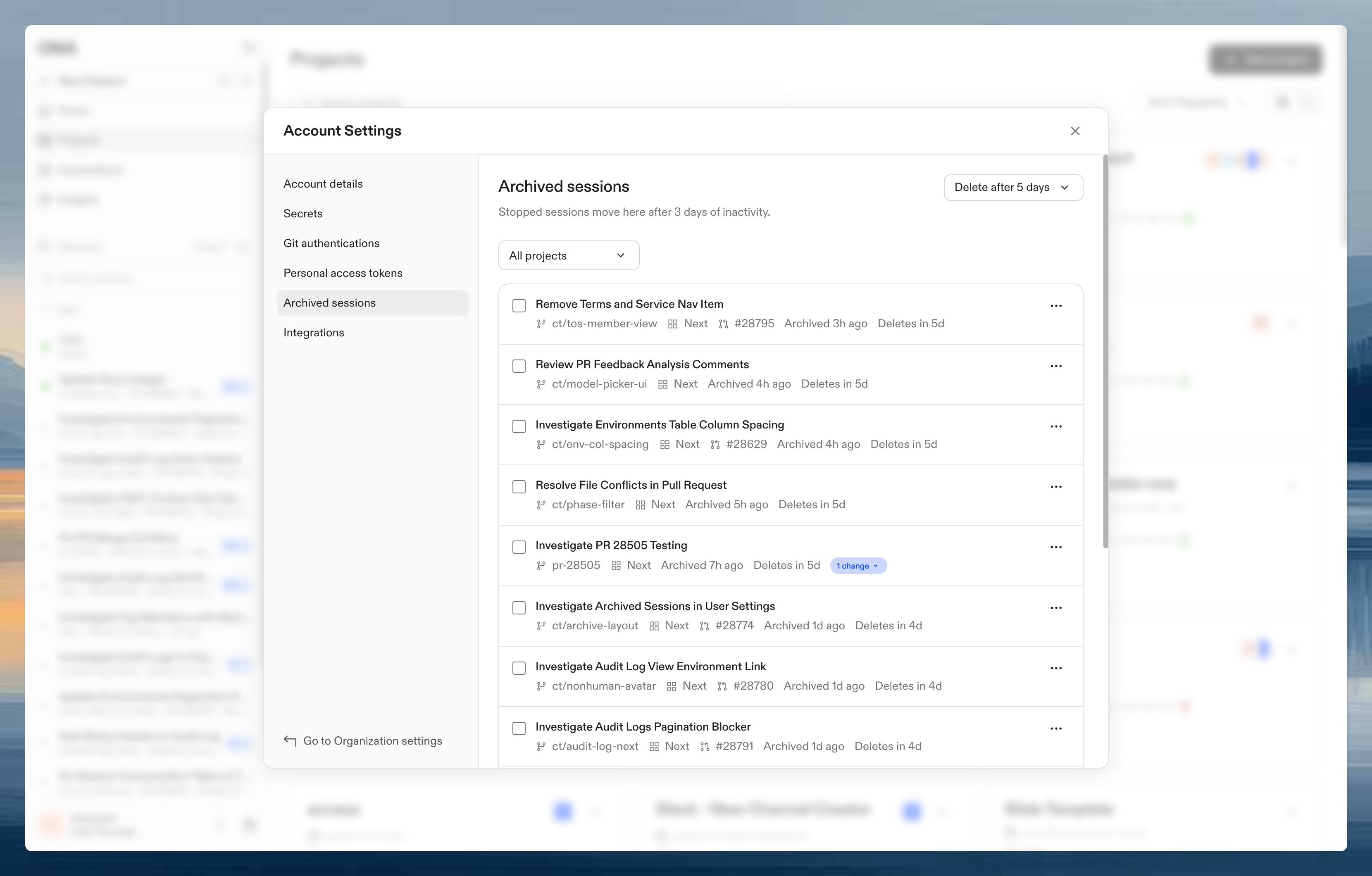
Managing archived environments
Select archived environments with the row checkboxes to use bulk actions, or open a row’s actions menu to manage one environment.- Unarchive - returns the environment to your main list.
- Delete - permanently removes the environment after you confirm.
Archive timing settings
Enterprise admins can configure when stopped environments move to Archived from Settings > Organization > Policies. The minimum is 1 day and the maximum is 30 days. Core organizations archive stopped environments after 3 days. See Archive timing policy for details.Auto-delete settings
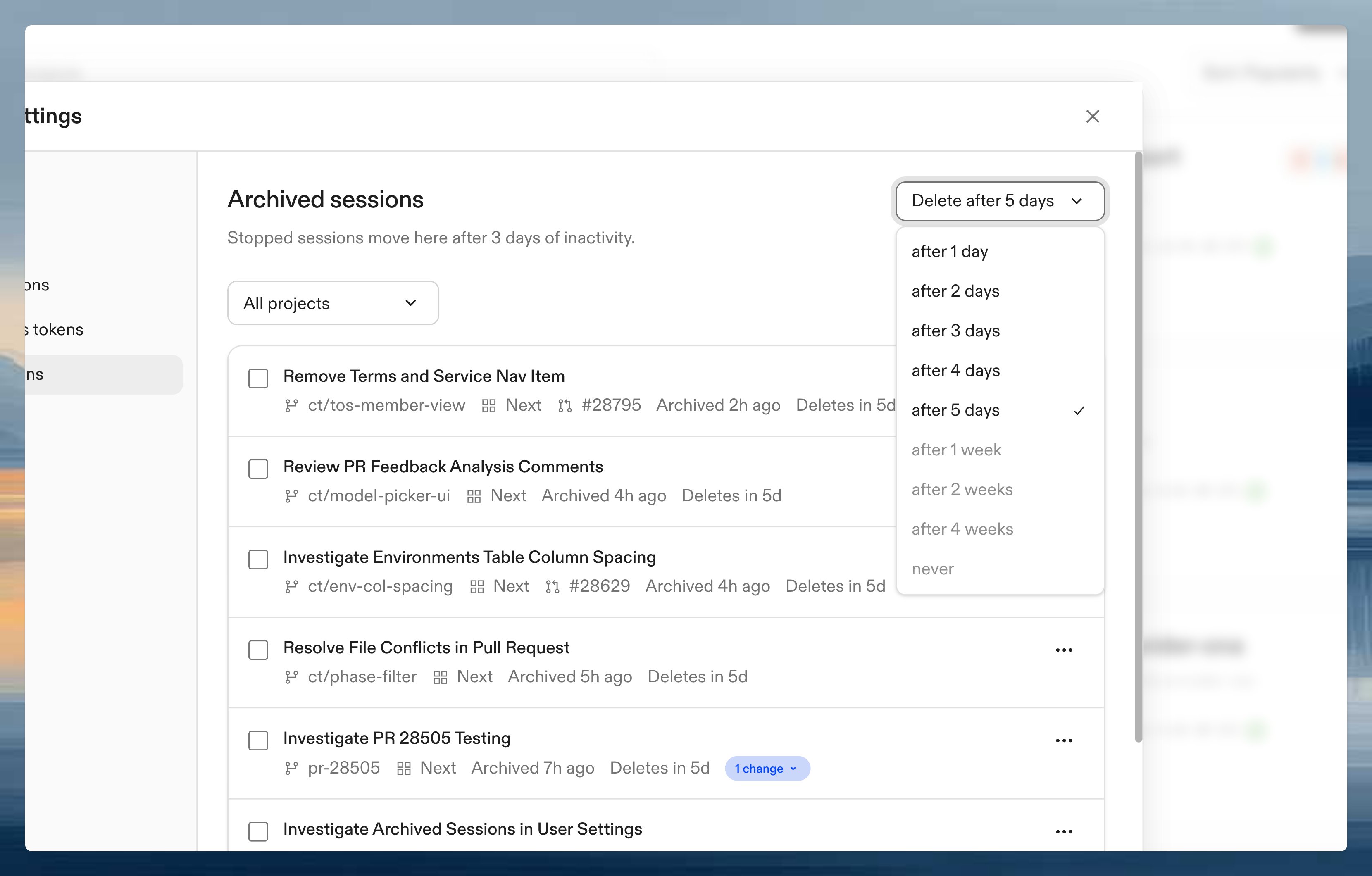
Auto-delete preferences are available on Enterprise plans. Core organizations auto-delete environments 4 days after archival.
FAQ
When are environments archived?
When are environments archived?
Core environments archive after 3 days of inactivity. Enterprise environments archive after 3 days by default, or after the organization policy period.
Can I recover deleted environments?
Can I recover deleted environments?
No. Only archived environments can be restored.
Why are some auto-delete options disabled?
Why are some auto-delete options disabled?
Your organization policy enforces a maximum retention period.
Do running environments get archived?
Do running environments get archived?
Automatic archival only applies to stopped environments. If you archive a running environment manually, Ona stops it before moving it to Archived.
Can't change auto-delete preference?
Can't change auto-delete preference?
Check organization policy restrictions.