

Available on the Enterprise plan. Contact sales to learn more.
- Enforcing security policies that require fresh environments (e.g., after a supply chain incident)
- Ensuring developers work with up-to-date base images and dependencies
- Meeting compliance requirements for environment rotation
- Maximum lifetime: How long an environment can exist before it becomes non-compliant
- Strict enforcement: Whether non-compliant environments are blocked from restarting
Configuration
Go to Settings → Organization → Policies. Select a duration from the dropdown. Only administrators can change this setting. Available durations: 1 hour, 8 hours, 1 day, 3 days, 1 week, 2 weeks, 1 month, or no maximum. Changes apply to existing and new environments. Changing the duration recalculates every existing environment’s deadline from its creation time. Selecting No maximum lifetime clears existing deadlines. A global policy change replaces any lifetime previously set for an individual environment.Strict enforcement
When a lifetime is set, you can enable strict enforcement to prevent users from restarting non-compliant environments.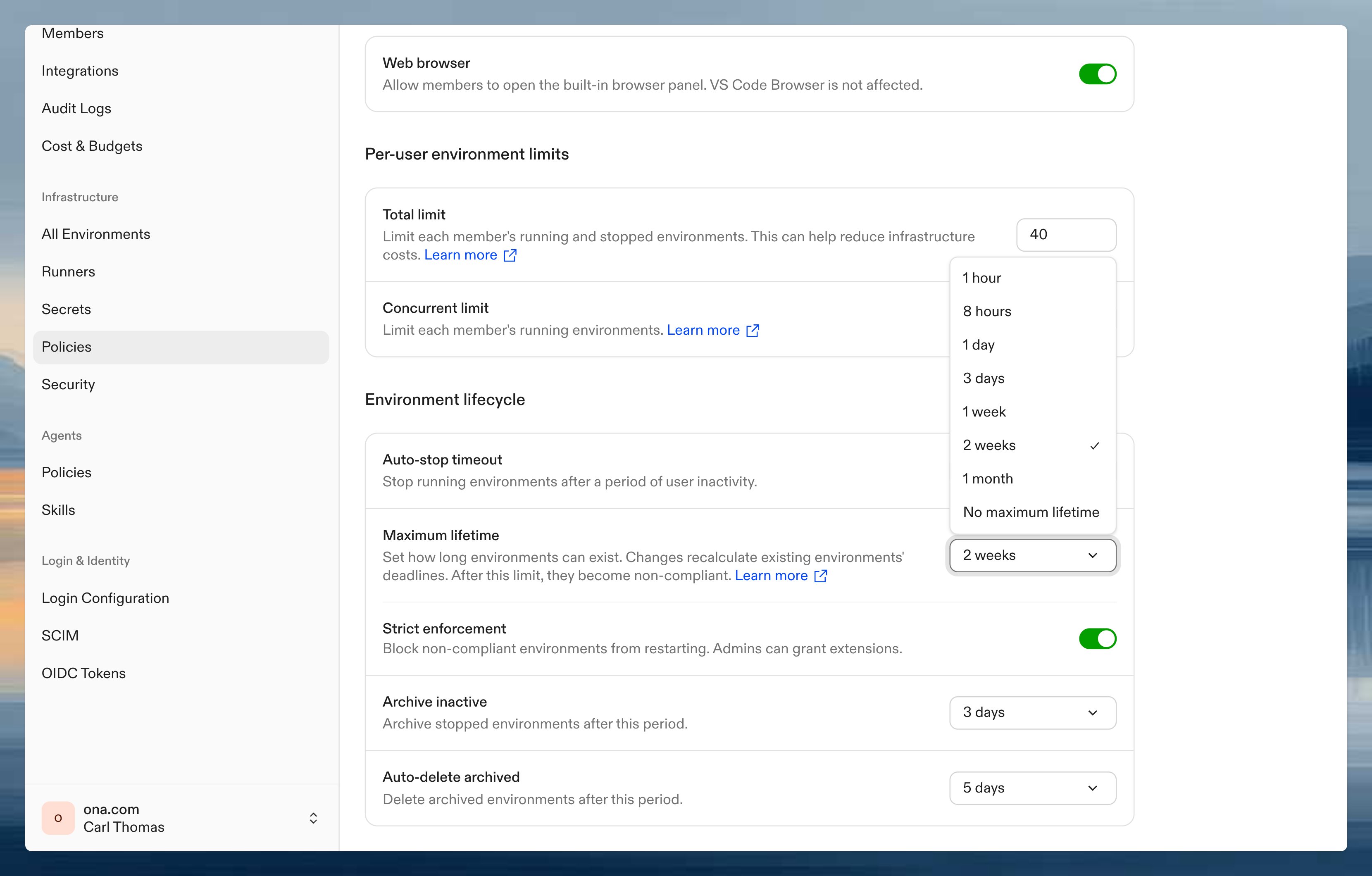
The compliance banner shows how many environments are currently non-compliant and how many will become non-compliant within 24 hours. Click Review environments to open the environment inventory filtered to exceeded environments.
Effect on users
Non-compliant environments display a status banner on the environment details page.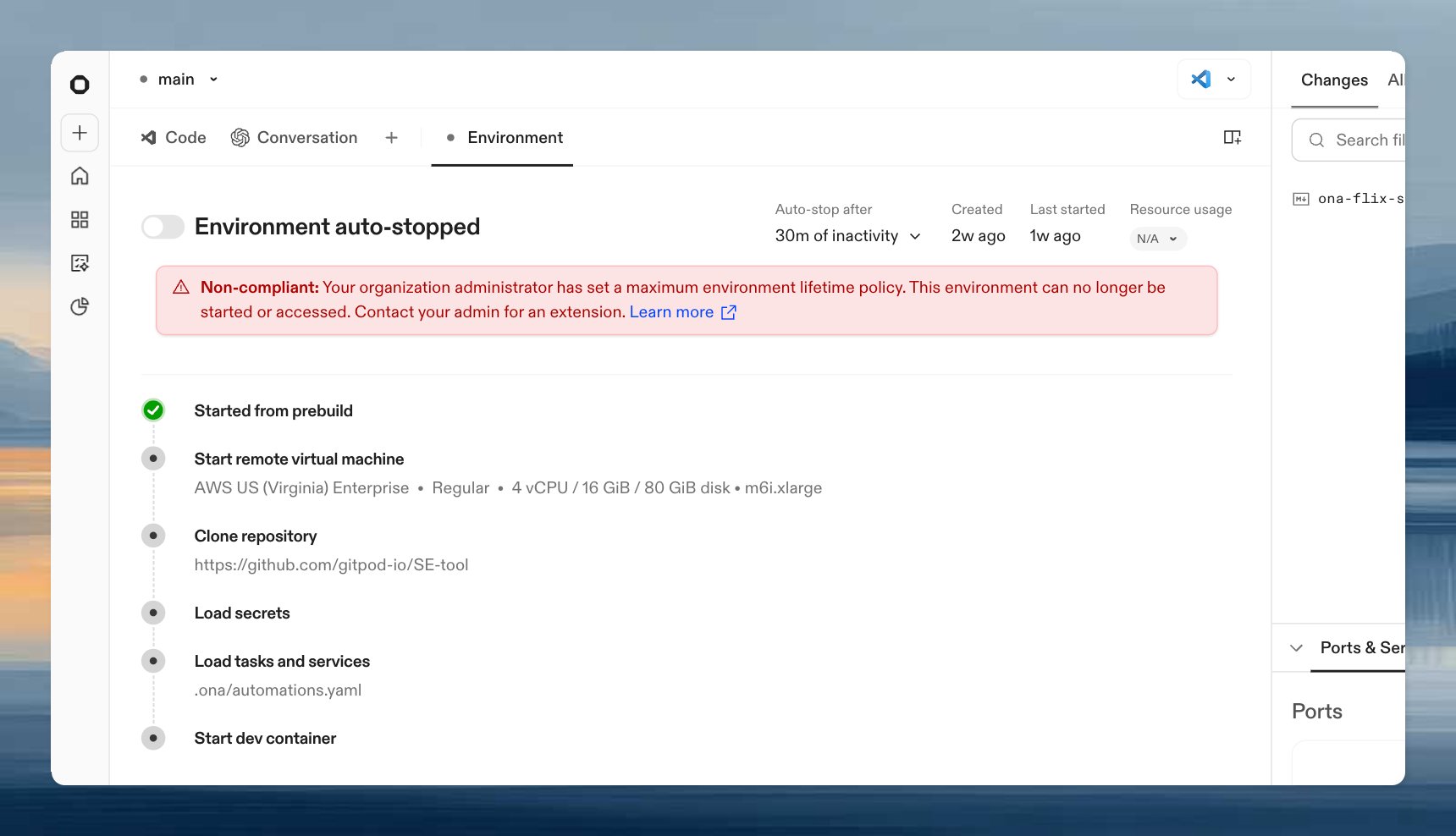
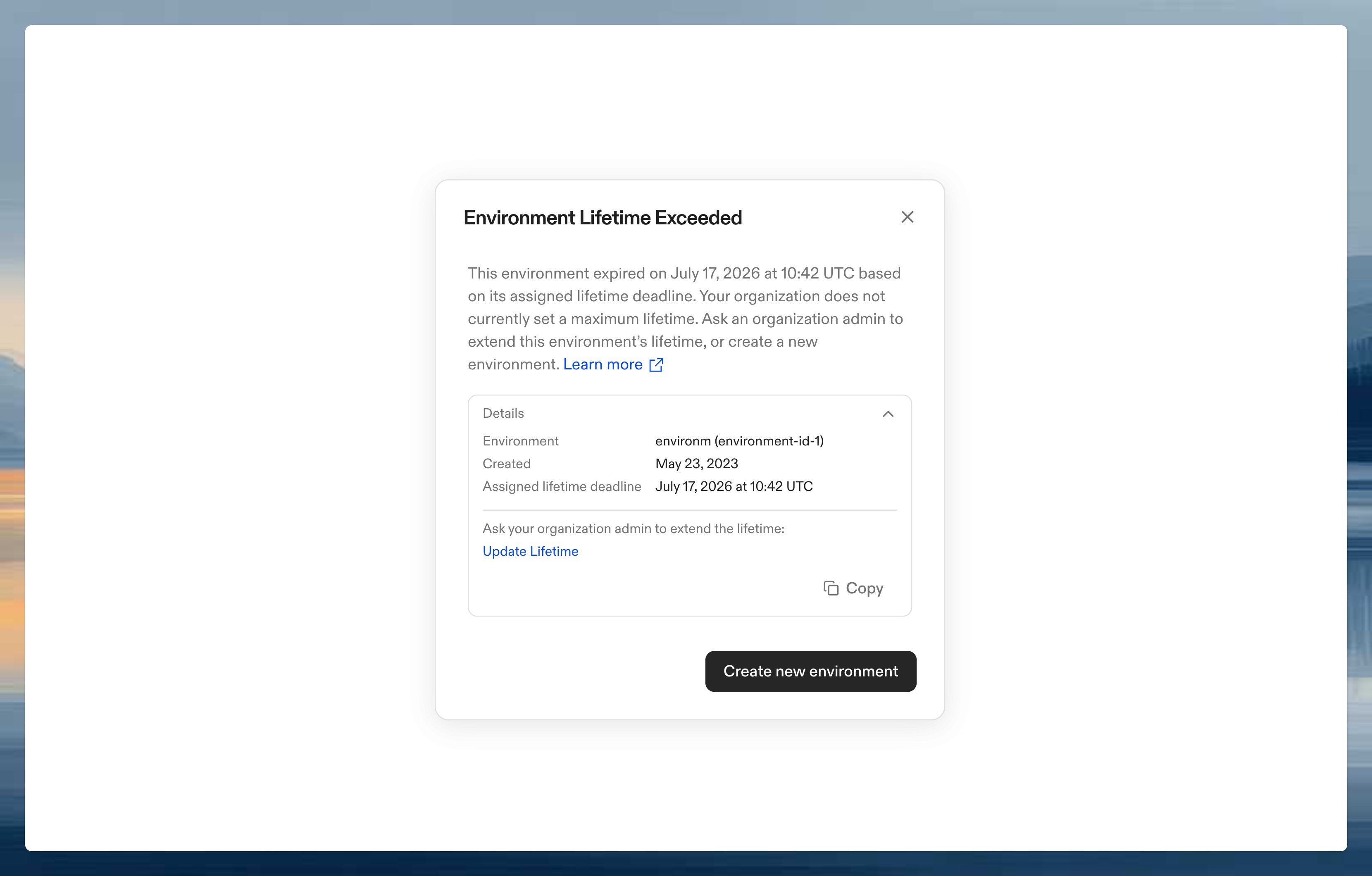
Managing environments
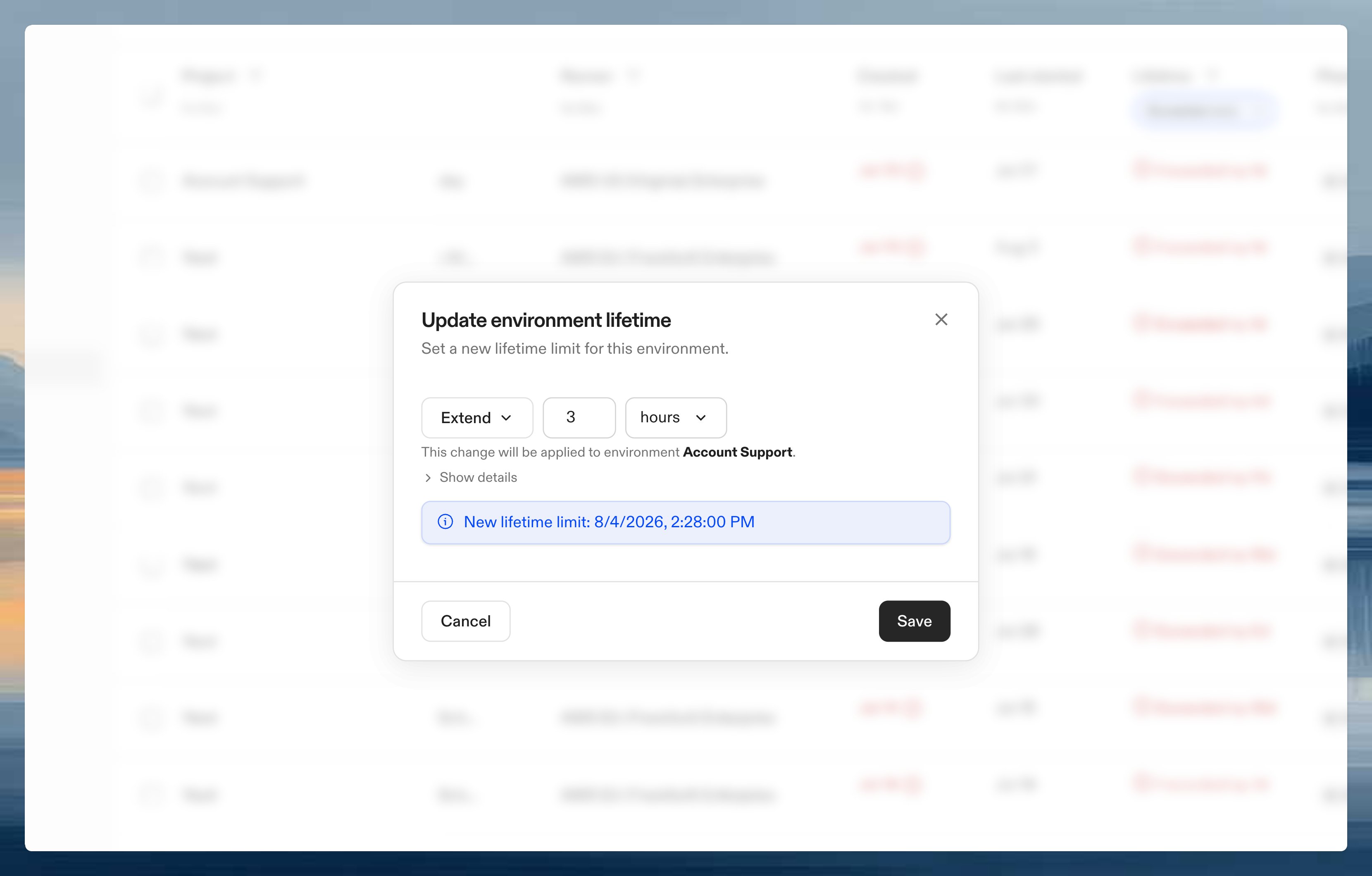
Administrators can review and manage environment lifetimes from Settings → Environments. The inventory shows each environment’s lifetime expiry and compliance status. Use the Exceeded filter to find non-compliant environments.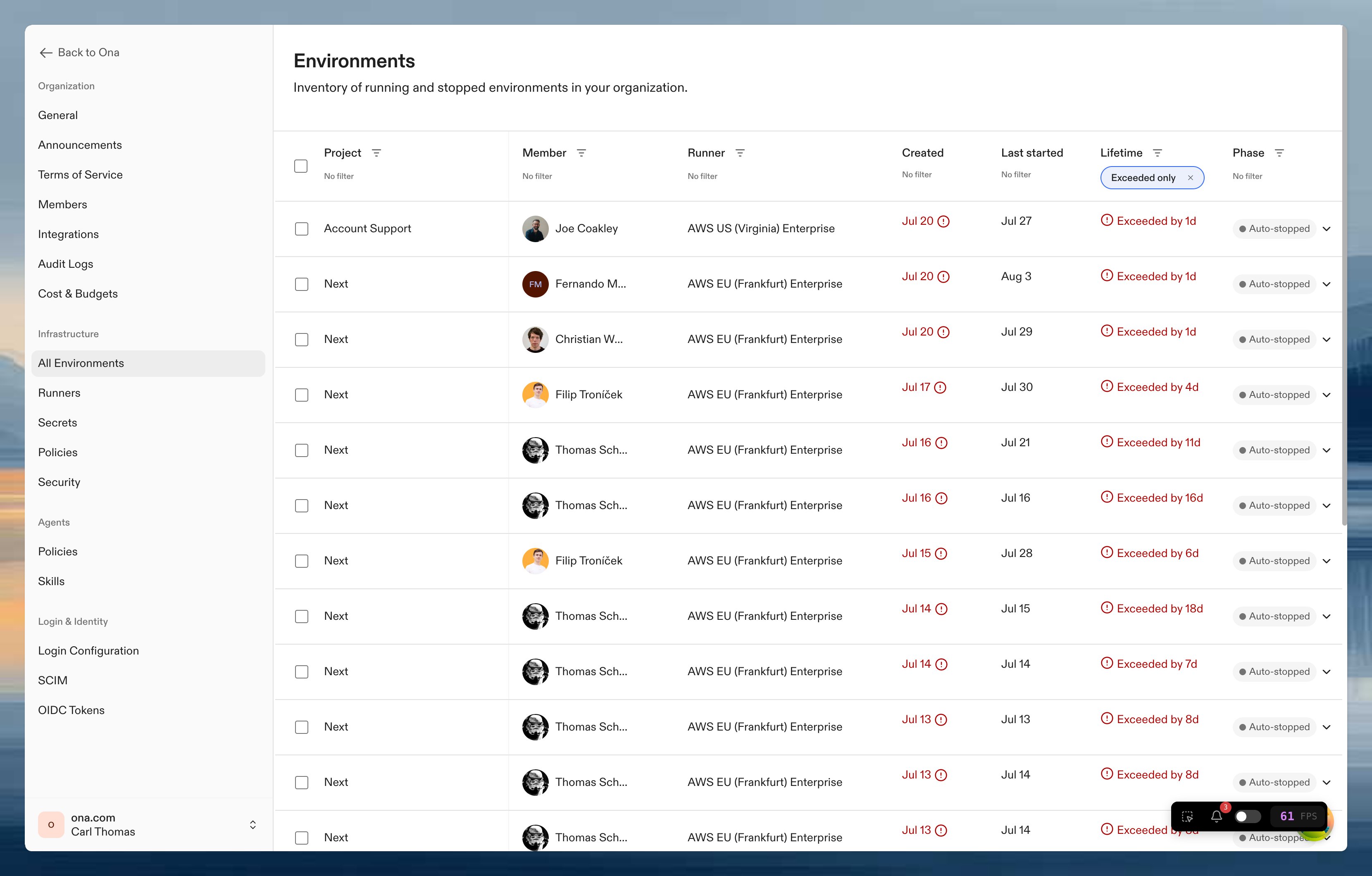
How it works
When an administrator sets a maximum lifetime:- New environments receive a lockdown timestamp equal to creation time plus the configured duration.
- Existing environments receive a recalculated lockdown timestamp equal to their creation time plus the new duration.
- No maximum lifetime clears the lockdown timestamp from existing environments and does not set one on new environments.
- When an environment passes its lockdown timestamp, it becomes non-compliant.
- Depending on strict enforcement, restarting is either warned or blocked.