

Available on the Enterprise plan. Contact sales to learn more.
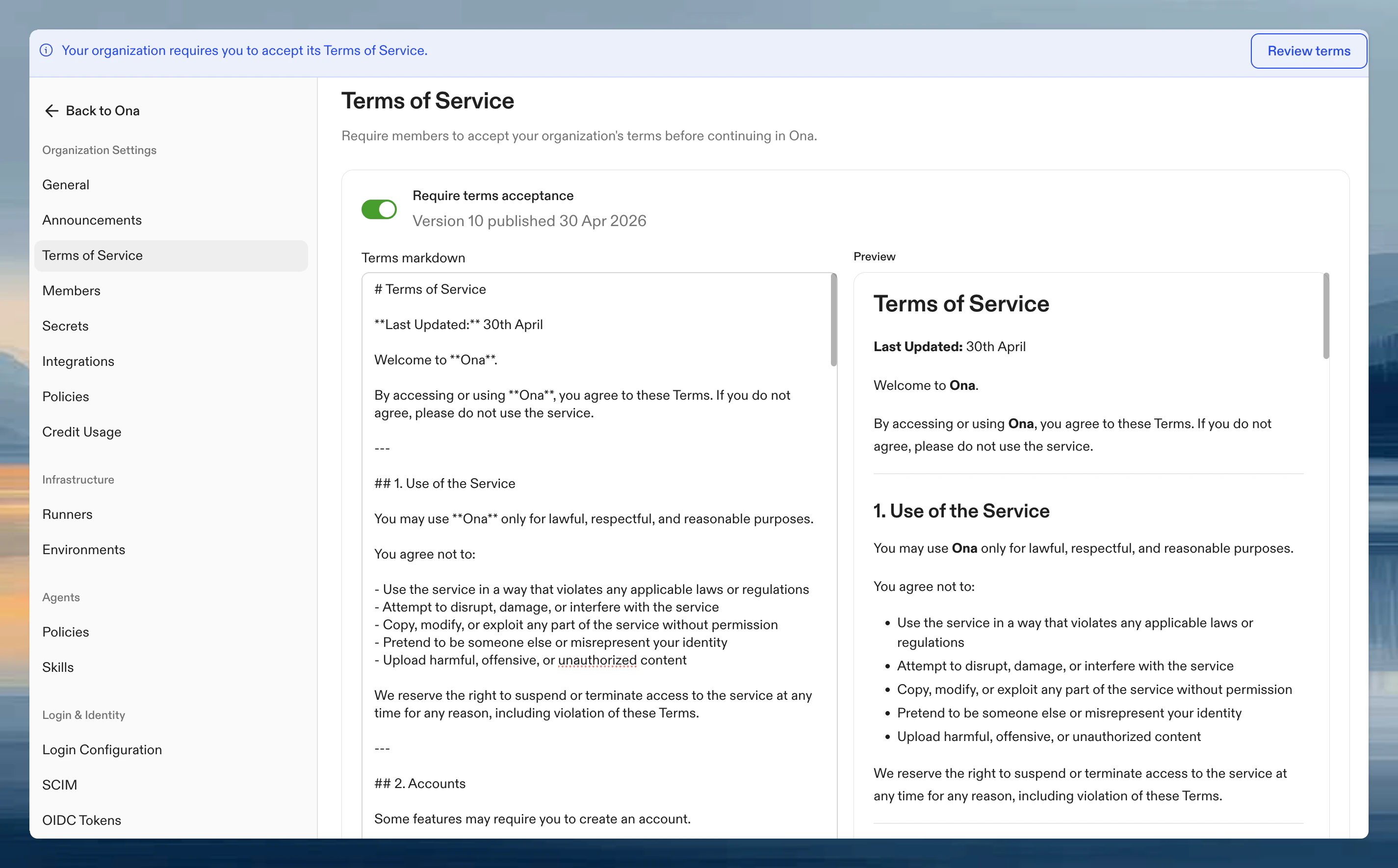
Enable terms of service
- Go to Settings → Organization → Terms of Service
- Write or paste your terms in the Terms markdown field. The editor supports up to 32,000 characters and renders a live preview alongside.
- Toggle Require terms acceptance on
- Click Save
Markdown editor
The editor accepts GitHub Flavored Markdown. The following are rendered:- Headings (
#,##,###) - Paragraphs and line breaks
- Bold and italic emphasis
- Ordered and unordered lists
- Links:
http(s)://andmailto:only; other schemes are dropped - Inline
codeand fenced code blocks - Blockquotes
- Tables (GFM)
- Images:
<img>tags andsyntax are stripped - Raw HTML: escaped as text rather than rendered
- JavaScript or other URL schemes in links: dropped silently
Publish a new version
Each saved change to the markdown publishes a new immutable version. Toggling the switch on or off does not create a new version on its own.- Versions are numbered sequentially starting at 1.
- Saving the page without changing the markdown does not create a new version.
- Saving the page with changed markdown creates a new version and sets it as the current version.
- Existing versions are immutable. Earlier text remains available in the acceptance report’s version filter so you can reconstruct who accepted what.
What members see when terms are enabled
On their next dashboard load, every active member of the organization sees:- A persistent banner at the top of the dashboard: “Your organization requires you to accept its Terms of Service.” with a Review terms action.
- A modal that opens automatically with the current version of the terms. The modal cannot be dismissed by clicking outside, pressing Escape, or navigating away.
- The Accept terms button stays disabled until the member scrolls to the bottom of the terms. A hint reads “Scroll to the bottom of the terms to enable Accept.” until they reach it.

Acceptance reporting
Track who has accepted in Settings → Organization → Members → Terms Acceptance. The tab is visible to organization admins once a version has been published. The report lists organization members matching the selected filters with their acceptance status for the selected version.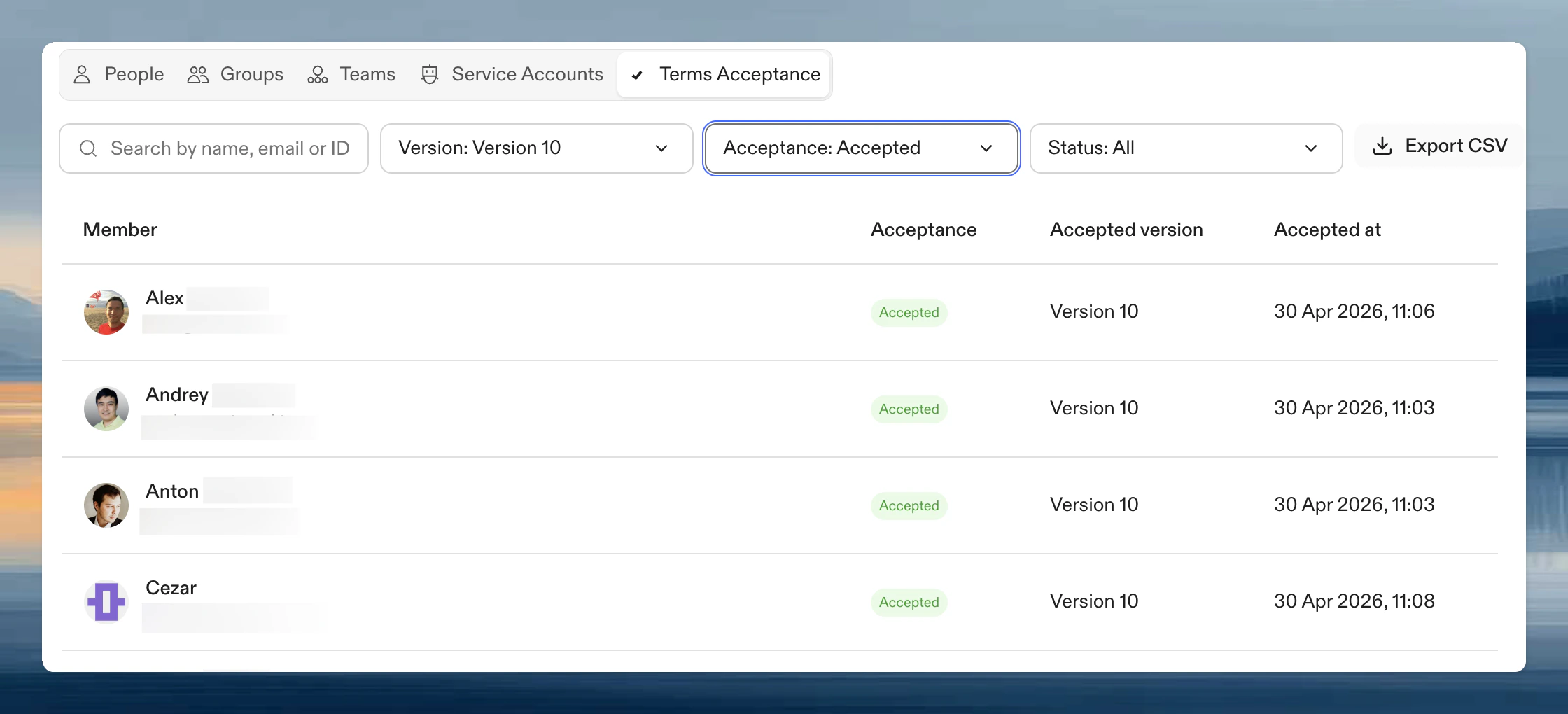
- Filter by version: switch between the current version and any earlier published version.
- Filter by member status: All, Active, or Suspended.
- Search by name or email.
Export to CSV
Use the Export CSV button at the top of the Terms Acceptance tab to download the report. The export reflects the version, member-status filter, and search currently selected in the tab. The download arrives as a gzipped CSV namedterms-of-service-acceptances-<organization-id>-v<version>.csv.
The export prefixes names, email addresses, and search metadata with an apostrophe when they start with characters that spreadsheet applications can interpret as formulas or controls. This keeps those characters from appearing at the start of an imported cell. Direct CSV parsers see the added apostrophe; the stored identity remains unchanged.
CSV columns
Disable terms of service
Toggle Require terms acceptance off and click Save. The published versions are preserved and the acceptance history remains queryable in the Terms Acceptance tab. Re-enabling later resumes prompting members to accept the current version.FAQ
Who can configure terms of service?
Who can configure terms of service?
Only organization administrators can access the Terms of Service settings page and the Terms Acceptance tab.
Do members have to re-accept every time I edit the text?
Do members have to re-accept every time I edit the text?
Only when the markdown changes. Saving with no changes (for example, toggling the switch on and off) does not publish a new version and does not require re-acceptance.
What happens to members who haven't accepted yet?
What happens to members who haven't accepted yet?
Members who haven’t accepted see the banner and the modal on their next dashboard load. They can browse to the modal and accept at any time. Acceptance is required to dismiss the modal.
Can I add images or custom HTML to the terms?
Can I add images or custom HTML to the terms?
No. Images are stripped and raw HTML is escaped as text. Use Markdown headings, lists, links, tables, and code blocks to structure the content.
Is the export filtered the same way as the on-screen report?
Is the export filtered the same way as the on-screen report?
Yes. The CSV reflects the version selector, member-status filter, and search query that are active in the Terms Acceptance tab when you click Export CSV.