
Deploy your GCP Runner using the Terraform module. This guide walks through prerequisites, Terraform configuration, deployment, and verification.

Prerequisites

Before starting, ensure you have:
  1. GCP Project with billing enabled, sufficient quotas, and required GCP APIs enabled
  2. VPC and subnet: a custom VPC with a runner subnet. The runner subnet hosts both the runner service and environment VMs. Internal load balancers require additional subnets.
    Optional: Private Google Access. If your runner subnet does not have external internet access, enable Private Google Access on the subnet so VMs can reach GCP services through Google’s internal network. See GCP services and APIs required for the full list of services that need to be reachable.
  3. Domain name that you control with DNS modification capabilities
  4. SSL/TLS certificate with Subject Alternative Names (SANs) for both the root domain and wildcard: yourdomain.com and *.yourdomain.com. Storage location depends on your load balancer mode.
  5. Terraform >= 1.3 and gcloud CLI installed and authenticated
Haven’t decided on a load balancer mode yet? Compare external vs internal options before proceeding.

Create runner in Ona

  1. In the Ona dashboard, go to Settings → Runners and click Set up a new runner
  2. Select Google Cloud Platform as the provider
  3. Enter a name and click Create
The dashboard generates a Terraform configuration example with your Runner ID, Runner Token, and API endpoint pre-filled. Copy these values. You’ll use them in the Terraform setup below.
Store the Runner Token securely. You cannot retrieve it again from the dashboard.

Terraform module setup

Create a directory for your runner configuration and set up the following files. main.tf references the Ona Terraform module with a GCS backend for state storage:
terraform {
  backend "gcs" {
    bucket = "your-terraform-state-bucket"
    prefix = "ona-runner"
  }
}

module "ona_runner" {
  source  = "gitpod-io/ona-runner/google"
  version = "~> 1.0"

  api_endpoint       = var.api_endpoint
  runner_id          = var.runner_id
  runner_token       = var.runner_token
  runner_name        = var.runner_name
  runner_domain      = var.runner_domain
  project_id         = var.project_id
  region             = var.region
  zones              = var.zones
  vpc_name           = var.vpc_name
  vpc_project_id     = var.vpc_project_id
  runner_subnet_name = var.runner_subnet_name
}
Using a GCS backend stores your Terraform state remotely, enabling team collaboration and protecting against local state loss. Create the bucket beforehand with versioning enabled.
variables.tf declares input variables. Add optional variables from the advanced configuration section as needed:
variable "api_endpoint" {
  type = string
}

variable "runner_id" {
  type = string
}

variable "runner_token" {
  type      = string
  sensitive = true
}

variable "runner_name" {
  type = string
}

variable "runner_domain" {
  type = string
}

variable "project_id" {
  type = string
}

variable "region" {
  type = string
}

variable "zones" {
  type = list(string)
}

variable "vpc_name" {
  type = string
}

variable "vpc_project_id" {
  type    = string
  default = ""
}

variable "runner_subnet_name" {
  type = string
}
terraform.tfvars contains the values from the Ona dashboard and your GCP project. See the sections below for the full variable reference.

Required configuration variables

These variables are required for every GCP Runner deployment. Most of them are pre-filled in the Terraform configuration example shown in the Ona dashboard after you create the runner.

Core Authentication Variables

These values are provided by the Ona dashboard when you create the runner.
VariableDescriptionExample ValueRequired
api_endpointOna management plane API endpoint (from Ona dashboard)"https://app.gitpod.io/api"✅ Yes
runner_idUnique identifier for your runner (from Ona dashboard)"runner-abc123def456"✅ Yes
runner_tokenAuthentication token for the runner (from Ona dashboard)"eyJhbGciOiJSUzI1NiIs..."✅ Yes
runner_nameDisplay name for your runner"my-company-gcp-runner"✅ Yes
runner_domainDomain name for accessing development environments"dev.yourcompany.com"✅ Yes
The api_endpoint value is provided in the Ona dashboard when you create the runner. If your organization uses a custom domain, the endpoint will reflect that domain instead.
# terraform.tfvars - Core runner authentication (copy from Ona dashboard)
api_endpoint  = "https://app.gitpod.io/api"   # Ona management plane API
runner_id     = "runner-abc123def456"         # From Ona dashboard
runner_token  = "eyJhbGciOiJSUzI1NiIs..."     # From Ona dashboard
runner_name   = "my-company-gcp-runner"       # Descriptive name
runner_domain = "dev.yourcompany.com"         # Your domain

GCP Project and Location

Specify the GCP project and region where the runner infrastructure will be created.
VariableDescriptionExample ValueRequired
project_idYour GCP project ID"your-gcp-project-123"✅ Yes
regionGCP region for deployment"us-central1"✅ Yes
zonesList of availability zones (2-3 recommended for HA)["us-central1-a", "us-central1-b"]✅ Yes
# terraform.tfvars - GCP project and location
project_id = "your-gcp-project-123"
region     = "us-central1"
zones      = ["us-central1-a", "us-central1-b", "us-central1-c"]

Network and Ingress Configuration

Configure how inbound and outbound traffic reaches your runner by specifying your VPC, subnet, and load balancer settings.
VariableDescriptionExample ValueRequired
vpc_nameName of your existing VPC"your-company-vpc"✅ Yes
runner_subnet_nameSubnet where runner and environments will be deployed"dev-environments-subnet"✅ Yes
The runner subnet hosts both the runner service and environment VMs. Recommended CIDR: /16 for non-routable ranges (large deployments) or /24 minimum for routable ranges.

External Load Balancer (Default)

# terraform.tfvars
vpc_name           = "your-company-vpc"
runner_subnet_name = "dev-environments-subnet"
loadbalancer_type  = "external"  # Optional, this is the default
certificate_id     = "projects/your-project/locations/global/certificates/your-cert"

Internal Load Balancer

# terraform.tfvars
vpc_name              = "your-company-vpc"
runner_subnet_name    = "dev-environments-subnet"
loadbalancer_type     = "internal"
routable_subnet_name  = "internal-lb-subnet"
certificate_secret_id = "projects/your-project/secrets/ssl-cert-secret"
Creating the certificate secret The certificate_secret_id must point to a Google Secret Manager secret containing both the certificate and private key as a JSON object:
{
  "certificate": "-----BEGIN CERTIFICATE-----\n...\n-----END CERTIFICATE-----",
  "privateKey": "-----BEGIN PRIVATE KEY-----\n...\n-----END PRIVATE KEY-----"
}
Create the secret using gcloud, replacing the paths with your certificate and key files:
jq -n \
  --arg cert "$(cat your-cert.pem)" \
  --arg key "$(cat your-key.pem)" \
  '{"certificate": $cert, "privateKey": $key}' \
  | gcloud secrets create ssl-cert-secret \
      --project=your-project \
      --data-file=- \
      --replication-policy=automatic
The internal load balancer also requires a proxy-only subnet in your VPC with purpose set to REGIONAL_MANAGED_PROXY. This subnet is not a Terraform module variable. It must exist in your VPC before deployment. GCP uses it internally to allocate proxy instances for the load balancer.Learn more about internal load balancer requirements →

Advanced configuration

The settings below are for organizations with additional network or security requirements, such as corporate proxies, private CAs, encryption key management, or restricted IAM policies. Most deployments do not need these.

HTTP Proxy Configuration

For environments behind corporate firewalls:
VariableDescriptionExample Value
proxy_config.http_proxyHTTP proxy server URL"http://proxy.company.com:8080"
proxy_config.https_proxyHTTPS proxy server URL"https://proxy.company.com:8080"
proxy_config.no_proxyComma-separated list of hosts to bypass proxy".company.com,localhost,127.0.0.1"
proxy_config.all_proxyAll-protocol proxy server URL"http://proxy.company.com:8080"
# terraform.tfvars - HTTP proxy configuration for corporate environments
proxy_config = {
  http_proxy  = "http://proxy.company.com:8080"
  https_proxy = "https://proxy.company.com:8080"
  no_proxy    = "localhost,127.0.0.1,metadata.google.internal,.company.com"
  all_proxy   = "http://proxy.company.com:8080"
}

Custom CA Certificate

If your network uses a corporate proxy or internal services with certificates signed by a private Certificate Authority, configure the runner to trust your CA certificate:
VariableDescriptionExample Value
ca_certificate.file_pathPath to a CA certificate file"./certs/corporate-ca.pem"
ca_certificate.contentCA certificate content (PEM-encoded string)"-----BEGIN CERTIFICATE-----\n..."
Provide either file_path or content, not both.
# terraform.tfvars - Option 1: Reference a CA certificate file
ca_certificate = {
  file_path = "./certs/corporate-ca.pem"
}

# Option 2: Inline CA certificate content
# ca_certificate = {
#   content = "-----BEGIN CERTIFICATE-----\nMIID...your-ca-cert...\n-----END CERTIFICATE-----"
# }
This is commonly needed alongside HTTP Proxy Configuration when the proxy performs TLS inspection with a corporate CA.

Customer-Managed Encryption Keys (CMEK)

For compliance with organizational encryption policies:
VariableDescriptionDefault Value
create_cmekAutomatically create KMS keyring and keyfalse
kms_key_nameExisting KMS key (when create_cmek = false)null
# terraform.tfvars - Option 1: Automatic CMEK setup (recommended)
create_cmek = true

# Option 2: Use existing KMS key
# create_cmek  = false
# kms_key_name = "projects/your-project/locations/us-central1/keyRings/gitpod-keyring/cryptoKeys/gitpod-key"
For additional configurations when using pre-existing CMEK keys, refer to the IAM configuration guide in the Terraform module.

Pre-Created Service Accounts

By default, the Terraform module creates and manages six service accounts for the runner components:
Service AccountPurpose
runnerRunner orchestrator. Manages environment lifecycle, compute instances, networking, and secrets
environment_vmEnvironment VMs. Reads container images, writes logs and metrics
build_cacheBuild cache. Manages Cloud Storage objects for devcontainer layer caching
secret_managerSecret manager. Creates and accesses secrets for environment injection
pubsub_processorPub/Sub processor. Consumes compute lifecycle events for environment reconciliation
proxy_vmProxy VMs. Routes traffic to environments, reads secrets and container images
If your organization requires service accounts to be created externally (e.g., by a central IAM team), you can provide pre-created service accounts instead. When provided, the module skips creating that service account and uses the one you supply. Each pre-created service account must have the correct IAM roles assigned before deployment. See the IAM configuration guide for the exact roles and permissions required per service account.
# terraform.tfvars - Pre-created service accounts (all optional, provide only the ones you manage externally)
pre_created_service_accounts = {
  runner           = "gitpod-runner@your-project.iam.gserviceaccount.com"
  environment_vm   = "gitpod-env@your-project.iam.gserviceaccount.com"
  build_cache      = "gitpod-cache@your-project.iam.gserviceaccount.com"
  secret_manager   = "gitpod-secrets@your-project.iam.gserviceaccount.com"
  pubsub_processor = "gitpod-pubsub@your-project.iam.gserviceaccount.com"
  proxy_vm         = "gitpod-proxy@your-project.iam.gserviceaccount.com"
}
You can provide a subset. Any service account left empty will be created and managed by the module automatically. The Terraform deployer account will also need fewer IAM permissions when using pre-created service accounts, since it no longer needs iam.serviceAccounts.create or resourcemanager.projects.setIamPolicy for those accounts.

Custom Images

Some enterprise networks do not allow pulling container images from external registries. In these cases, you can point the runner at images hosted in your own internal registry.
Discouraged unless your network policy strictly requires it. Ona maintains all runner images in a public registry with regular CVE scanning and patching. Custom images break automatic updates and delay security patches. You must sync every release manually. If possible, allowlist Ona’s registry instead.
VariableDescriptionExample Value
custom_images.runner_imageCustom runner container image"gcr.io/your-project/runner:v1.0"
custom_images.proxy_imageCustom proxy container image"gcr.io/your-project/proxy:v1.0"
custom_images.prometheus_imageCustom Prometheus image"gcr.io/your-project/prometheus:latest"
custom_images.docker_config_jsonDocker registry credentials (JSON)jsonencode({...})
# terraform.tfvars - Custom images configuration
custom_images = {
  runner_image     = "gcr.io/your-project/custom-runner:v1.0"
  proxy_image      = "gcr.io/your-project/custom-proxy:v1.0"
  prometheus_image = "gcr.io/your-project/prometheus:latest"

  # Docker registry authentication (JSON format)
  docker_config_json = jsonencode({
    auths = {
      "gcr.io" = {
        auth = base64encode("_json_key:${file("service-account-key.json")}")
      }
    }
  })

  # Set to true for insecure registries (testing only)
  insecure = false
}
If you must use custom images, set up an automated pipeline to sync images from Ona’s stable channel to your internal registry (e.g., Artifactory). Contact Ona support for guidance on image synchronization and release notifications.

Shared VPC

If your organization uses a GCP Shared VPC where the VPC is hosted in a separate host project, set vpc_project_id to the project that owns the VPC. When omitted, the module assumes the VPC is in the same project as the runner (project_id).
VariableDescriptionExample Value
vpc_project_idProject ID where the Shared VPC is located"shared-vpc-host-project"
# terraform.tfvars - Shared VPC configuration
project_id     = "runner-service-project"       # Project where runner resources are created
vpc_project_id = "shared-vpc-host-project"       # Project that hosts the Shared VPC
vpc_name       = "shared-company-vpc"            # VPC name in the host project
runner_subnet_name = "dev-environments-subnet"   # Subnet shared to the service project
When using Shared VPC, the runner’s service project must be attached as a service project to the host project, and the subnets used by the runner must be shared with the service project. The service account running Terraform needs compute.networkUser on the shared subnets in the host project.

Labels

Apply GCP labels to all resources created by the module. Labels are useful for cost attribution, filtering in billing reports, and organizational policies.
# terraform.tfvars
labels = {
  team        = "platform"
  environment = "production"
  cost-center = "engineering"
}
For details on using labels for cost tracking and budgeting, see Costs & Budgeting: Adding labels to Compute Engine instances.

Deploy

Initialize Terraform to download the module, then validate, plan, and apply:
terraform init
terraform validate
terraform plan -out=tfplan
terraform apply tfplan
Deployment typically takes 15–20 minutes. The Redis instance creation is usually the longest step.

Post-deployment

After terraform apply completes, retrieve the load balancer IP and configure DNS:
terraform output load_balancer_ip
Create A records for both the root domain and wildcard pointing to this IP:
yourdomain.com.     A    <load-balancer-ip>
*.yourdomain.com.   A    <load-balancer-ip>
For internal load balancers, ensure your corporate DNS servers can resolve these records and your network can route to the internal IP. Once DNS propagates, verify the runner is healthy:
curl -k https://yourdomain.com/_health
# Expected: {"status":"ok"} with HTTP 200
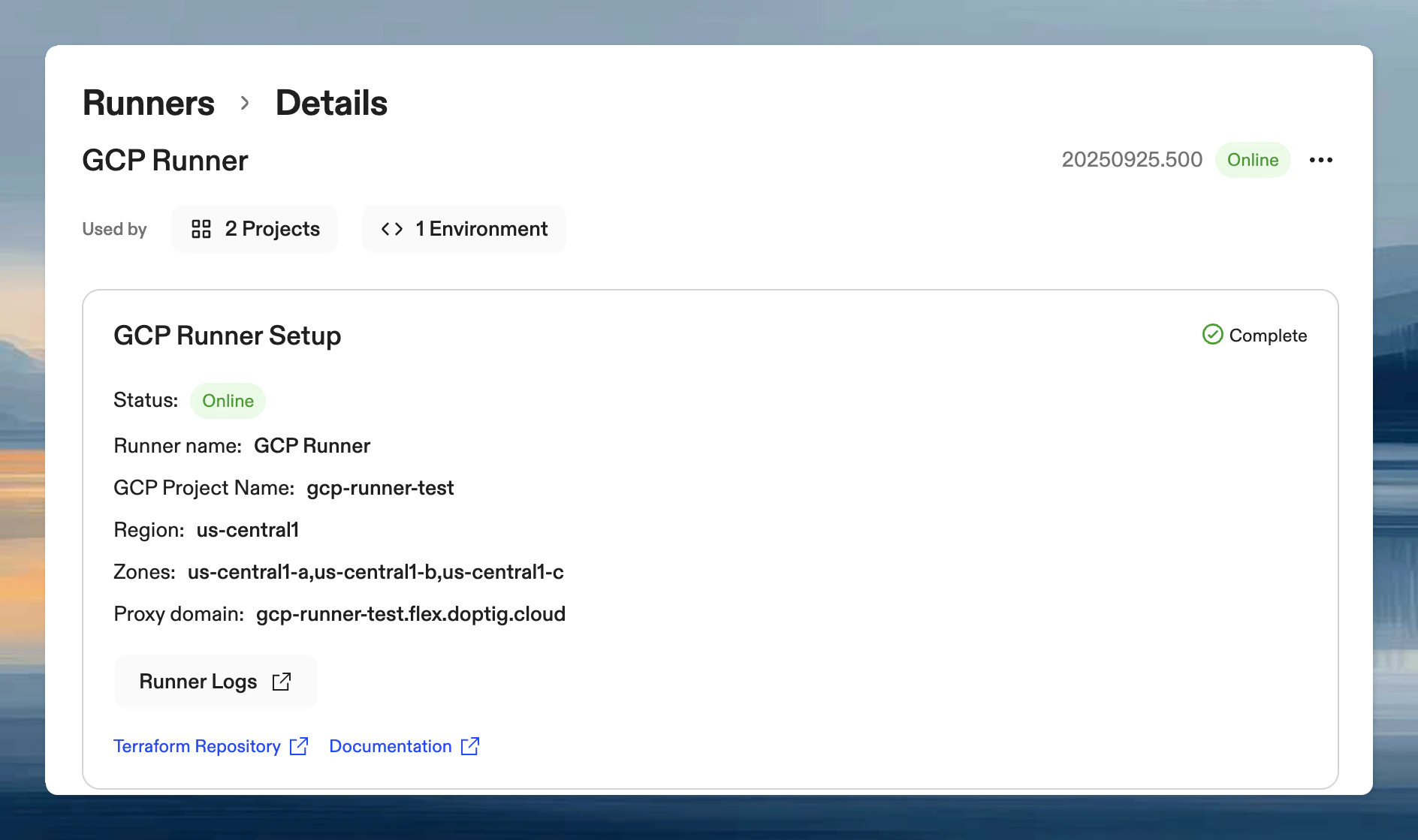
Then confirm the runner shows as Online in the Ona dashboard under Settings → Runners. Runner details showing Online status with green indicator after successful deployment

Next steps

With your GCP Runner successfully deployed and verified: