

The built-in web browser is enabled by default for all organization tiers. Enterprise admins can disable it with the web browser organization policy.
Where the browser is available
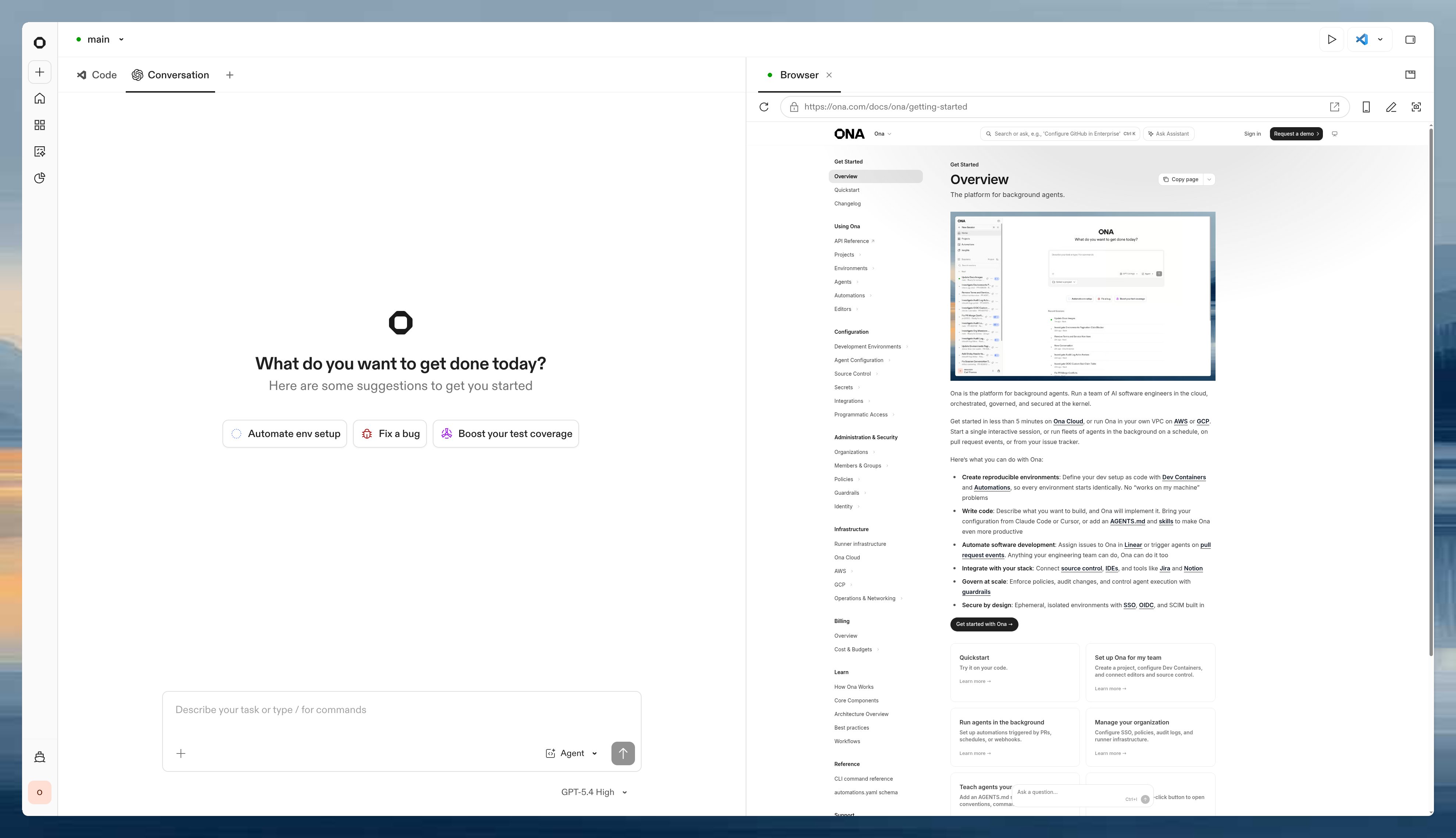
The built-in browser appears on environment pages when all of these are true:- The environment is in a phase where actions can be opened, such as a running environment.
- The organization allows the built-in browser.
- The environment supervisor supports the browser controller.
Enable or disable the browser
The browser is enabled by default for Free, Core, and Enterprise organizations. Enterprise admins can disable or re-enable it from Settings > Organization > Policies > Allow Web Browser in Environments. Disabling the policy has these effects:- The dashboard hides browser actions and the Browser tab.
- Ona does not expose the
browse-webbuilt-in skill to agents in that organization. - Members cannot start the environment’s managed browser session from the dashboard.
Security and ports
The built-in browser is separate from shared port URLs. Opening a local app in the Browser tab does not make that app public. For port previews, Ona navigates the managed browser to an environment-local address, such ashttp://localhost:3000.
Port sharing is still relevant for the browser’s own connection. When the browser starts, Ona declares a managed browser port so the dashboard can connect to the browser session. That managed port is for the Browser tab and is not the same as sharing your app’s port with other people.
Use port sharing when you need a URL outside Ona, such as a teammate preview link or a webhook callback URL. Use the built-in browser when you want a preview inside Ona that you and Ona can both inspect.
When you ask Ona to open the exact published URL of a protected port in the current environment, Ona authenticates that browser navigation automatically. This does not make the port public or change its admission level. Authentication is scoped to that port URL and reused within the environment’s browser session until it expires.
Open the browser manually in the product
Open the browser from an environment details page:- Open a running environment.
- Select Open Browser to open a blank Browser tab.
- To preview a local app, select Preview … in Browser from a listed port.
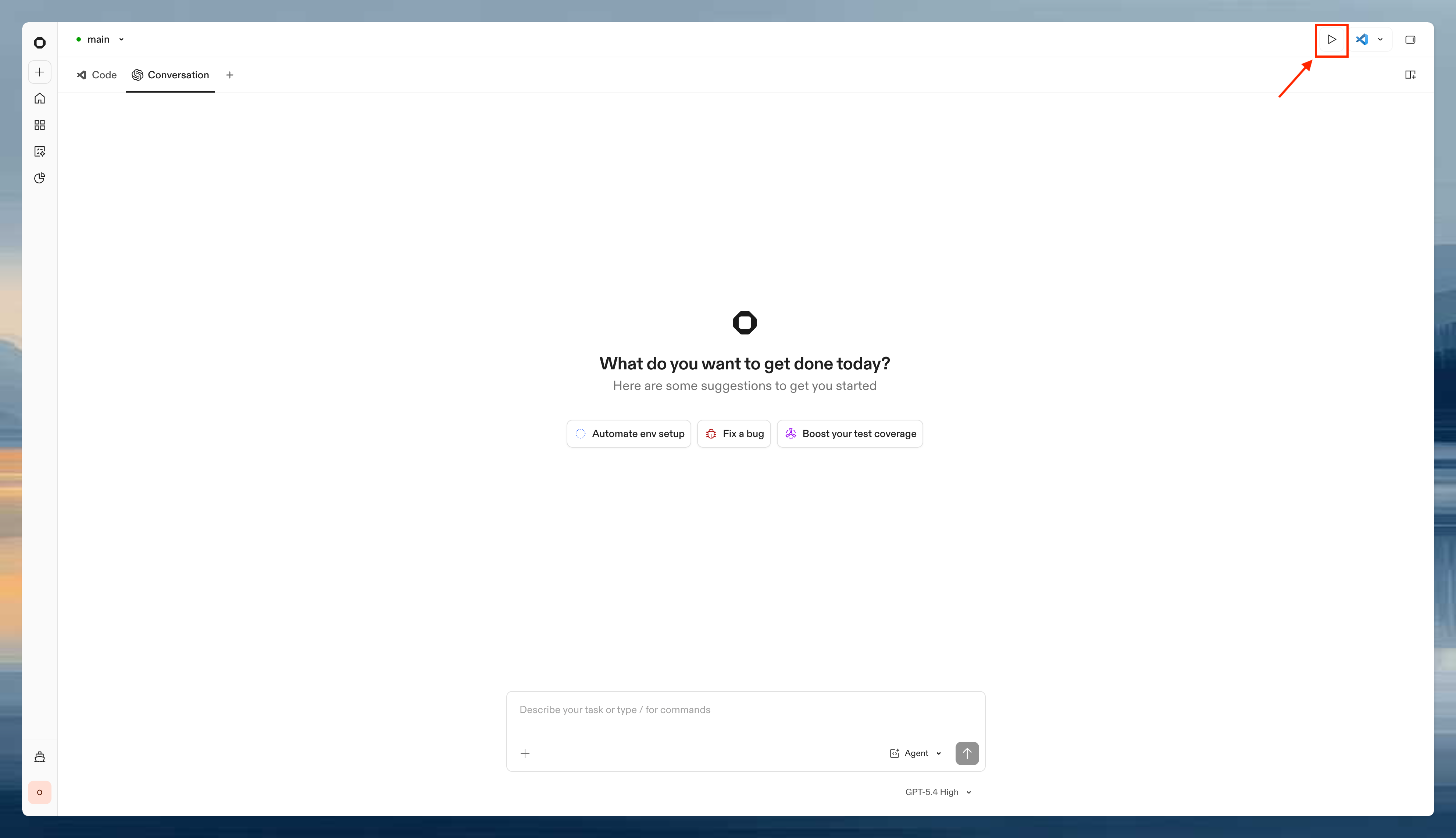
- Type a URL in the browser address field.
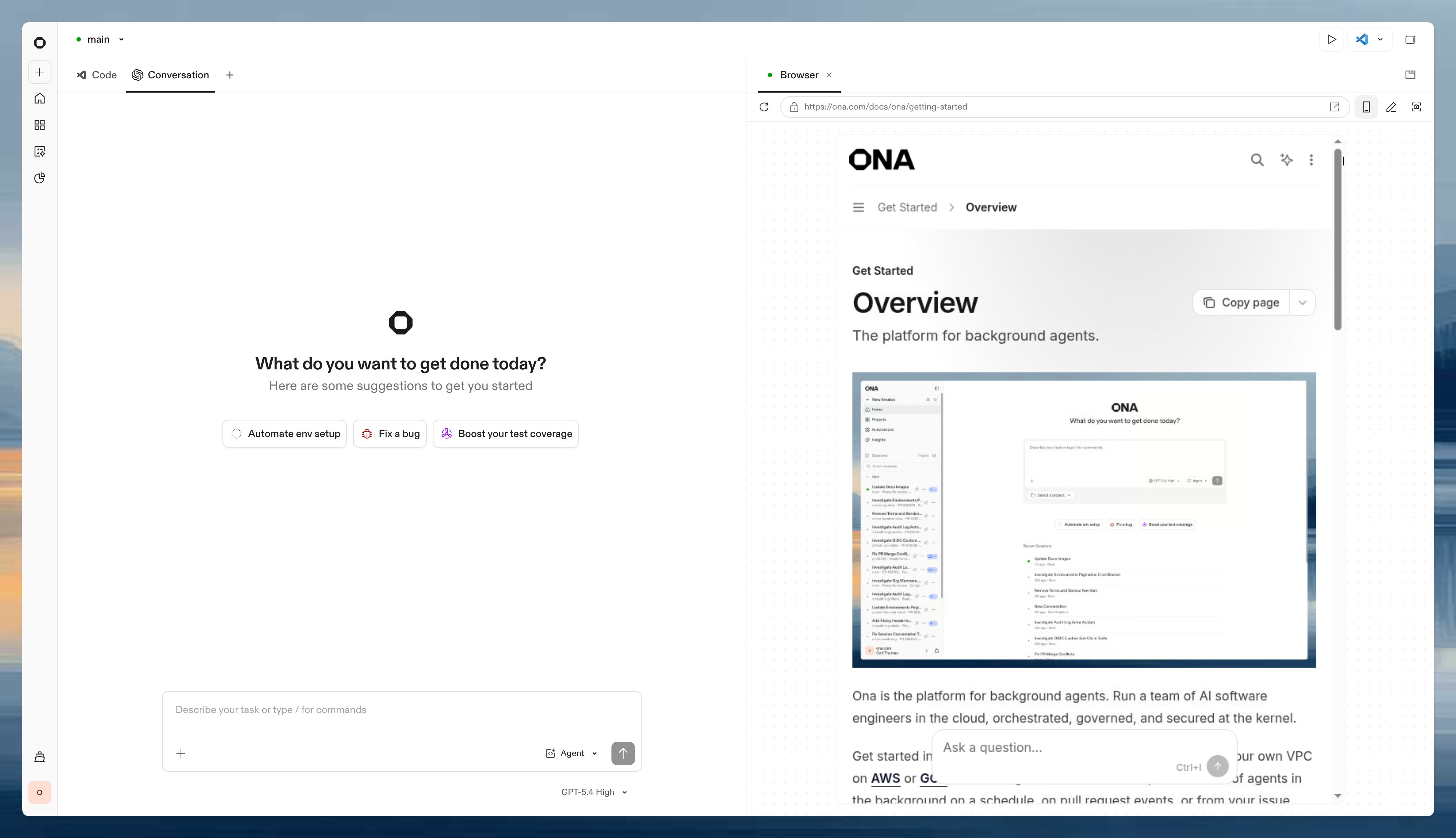
- Use back, forward, reload, and external-open controls from the Browser tab header.
- Switch between desktop and mobile viewport mode.
- Close the Browser tab without stopping the environment.
Ask Ona to use the browser
When Ona AI is enabled, ask Ona to use the browser when a task requires visual inspection, page interaction, screenshots, videos, console output, or network requests. Mention the URL or port and the behavior you want checked. Examples:Open the browser and verify the app on port 3000 loads without console errors.Use the browser to reproduce the login bug on localhost:8080 and tell me which step fails.Open the settings page in the browser, take a screenshot, and explain why Save is disabled.Record a short video of the onboarding flow in the browser and attach it to the conversation.
Send screenshots and annotations to Ona
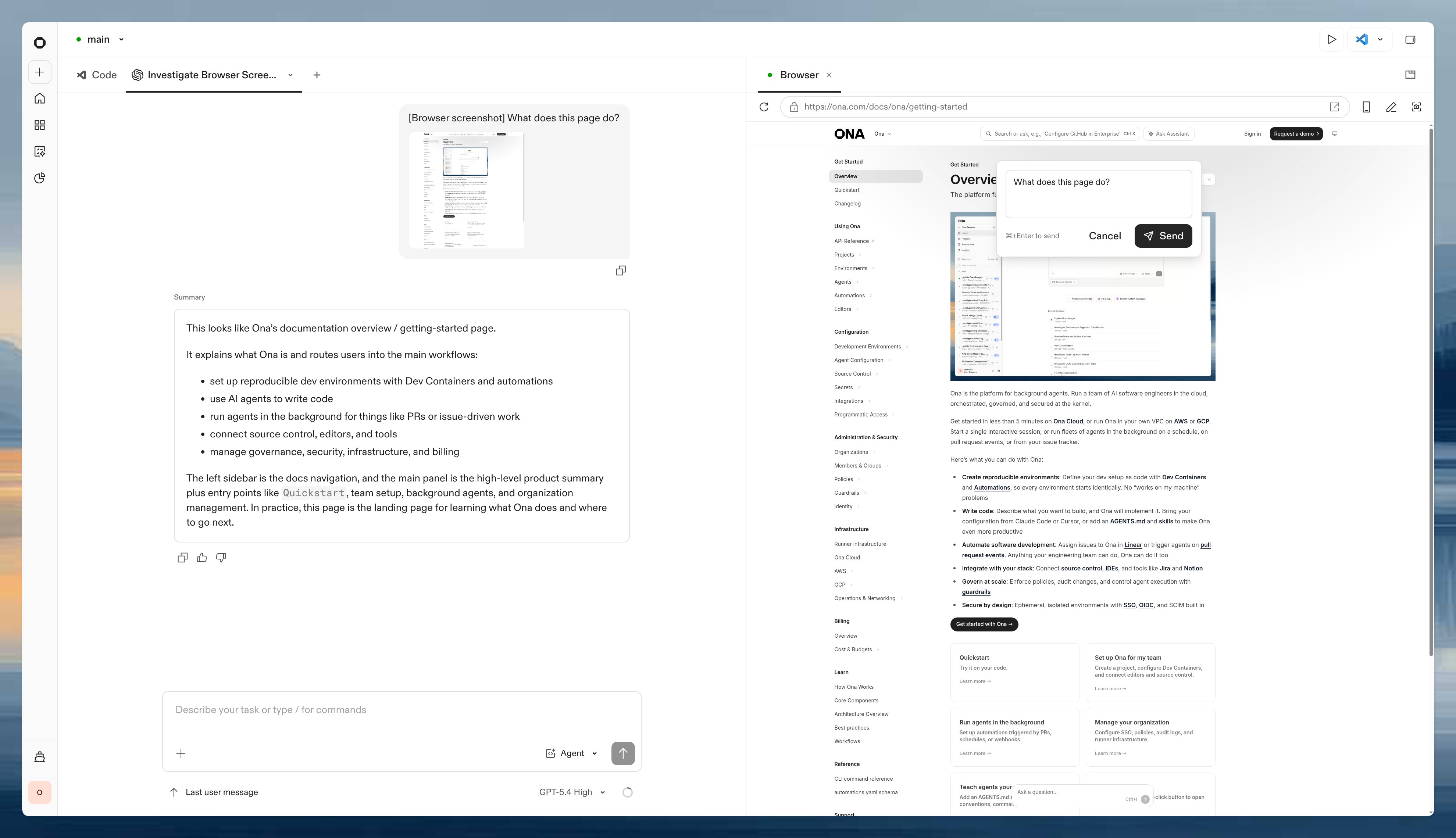
When Ona AI is enabled, use screenshots when Ona needs to inspect the exact page state you are seeing.- Send screenshot to Ona captures the current Browser tab and opens a message prompt with the screenshot attached.
- Annotate browser lets you draw on the page, describe what to change, and send the annotated screenshot to Ona.
- Mobile viewport switches the Browser tab between desktop and mobile viewport modes before you capture or annotate.
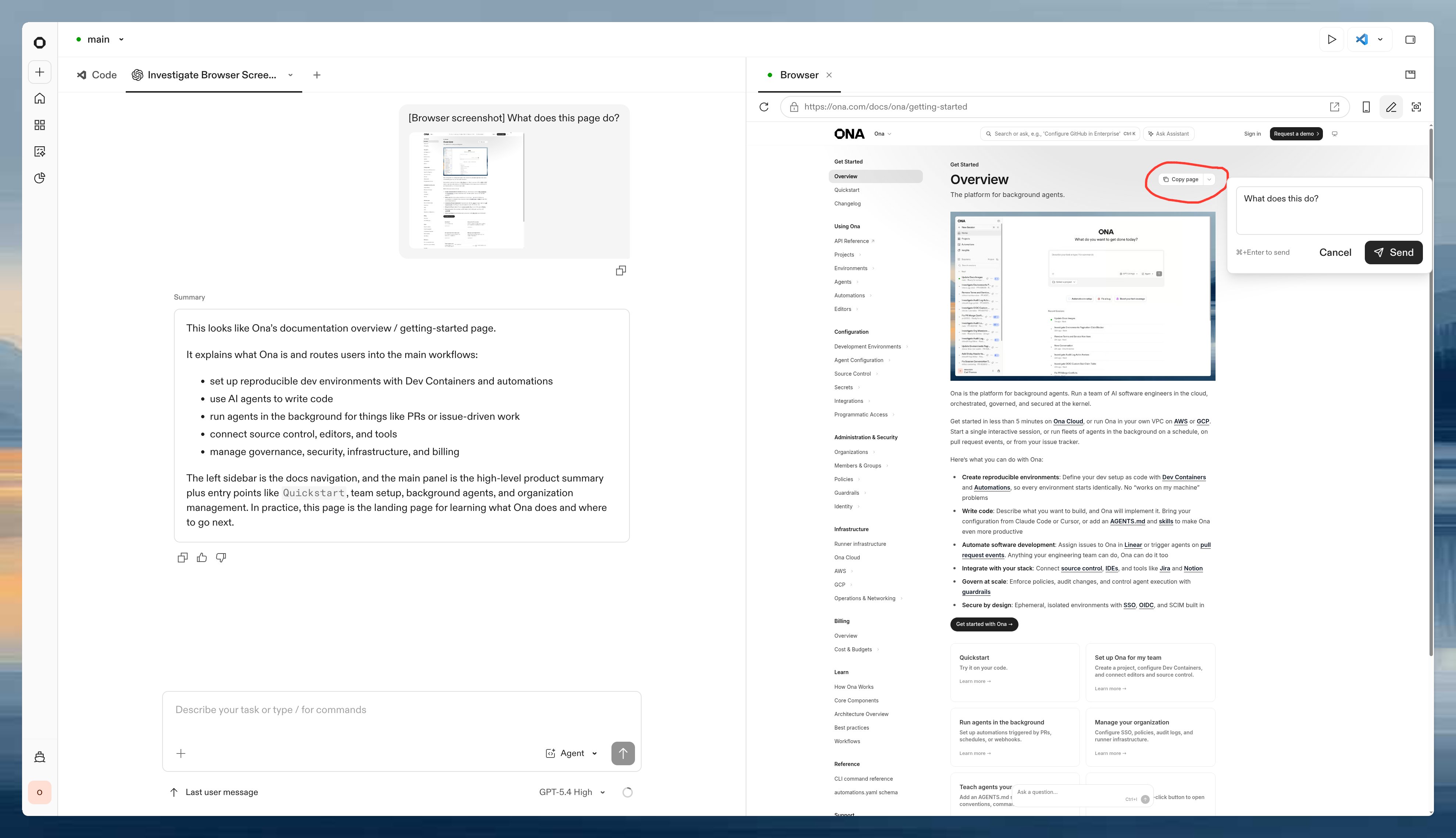
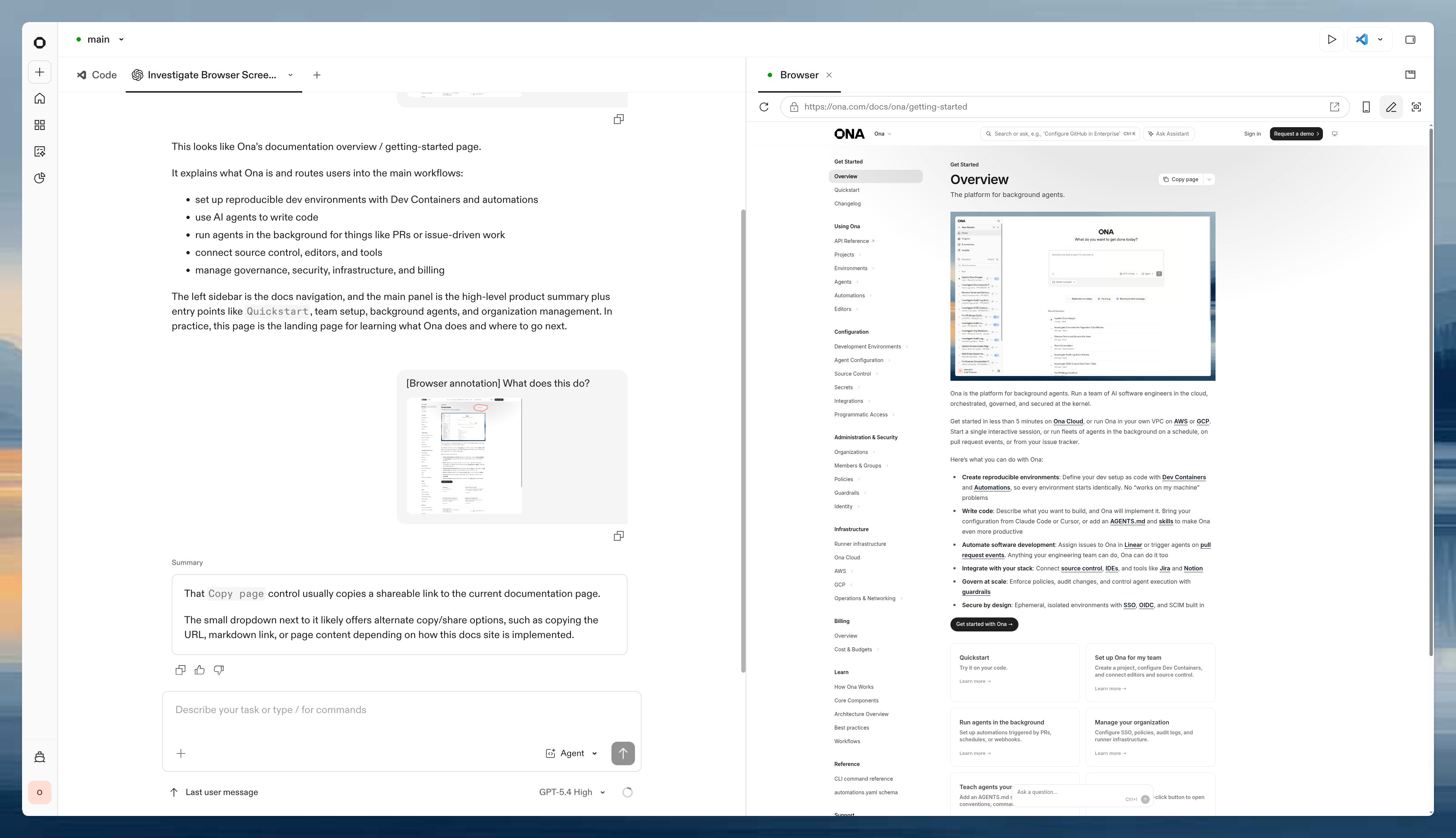
Use the browser to open the dashboard on port 3000 and attach a screenshot of the billing page.Record a short video of the signup flow in the browser and tell me where the error appears.Take screenshots before and after submitting the form so I can compare the UI states.
FAQ
Does opening a port in the built-in browser make it public?
Does opening a port in the built-in browser make it public?
No. Opening a port in the built-in browser keeps the preview inside the environment page. Use Port sharing when you need a URL that can be opened outside the environment page.
Does disabling port sharing disable the built-in browser?
Does disabling port sharing disable the built-in browser?
No. Port sharing and the built-in browser use separate policies. The built-in browser is controlled by the web browser policy.
Can Ona see what I do in the Browser tab?
Can Ona see what I do in the Browser tab?
Yes, when Ona AI is enabled. Ona and the Browser tab use the same browser session for the environment. If you sign in, navigate, or change page state in the Browser tab, Ona can continue from that state when you ask it to use the browser.
Troubleshooting
The Browser tab or browser actions are missing
The Browser tab or browser actions are missing
The environment may not be running, the environment supervisor may not support the browser yet, or your Enterprise organization may have disabled the web browser policy. Ask an organization administrator to check Settings > Organization > Policies > Allow Web Browser in Environments.
The browser fails to start
The browser fails to start
The environment may be running on a supervisor version that does not support the built-in browser. Restart the environment after the runner is upgraded, then try opening the browser again.
My app does not load in the built-in browser
My app does not load in the built-in browser
Check that the app is running and listening on the expected port. If the app also needs to be reachable through Ona port handling, follow the bind-address and network guidance in Port sharing.